

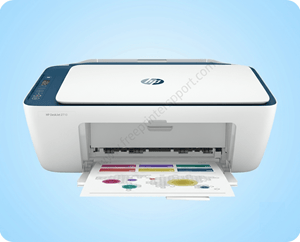
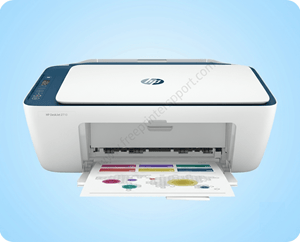
HP DeskJet Ink Advantage 2138 is an all-in-one color printer that can print, scan and copy. The printer is mainly used on the USB port. To use all these features, you will have to install its latest version driver on your PC. Although you can easily download its driver from its official website or download the same from the download section given below. After downloading the drivers, please read the how-to install guide that I have given in the how-to-install section below – beneath the download section.
At the bottom of this page, you will find all the specifications and features of this HP DeskJet 2138 printer. So without wasting time, let’s start the installation process by downloading the drivers first.
Advertisement
Download HP DeskJet 2138 Driver for PC
To download the driver, you just need to click on the below given download link according to the operating system version you have.
Driver for Windows
Supported OS: Windows 11, 10, 8, 8.1, 7, Vista, XP (32bit/64bit), Server 2000 to 2026
Full feature driver download for Windows 11, 10, 8, 8.1, 7: Download | Recommended
Basic driver download for Windows 32bit: Download 32bit (Basic Driver)
Basic driver download for Windows 64bit: Download 64bit (Basic Driver)
Driver for MAC
Supported OS: Mac OS 10.x, 11.x, 12.x, 13.x, 14.x, 15.x, 26.x
Full feature driver download for Mac OS All editions: Download
Driver for Linux
Supported OS: Linux and Ubuntu OS
Full feature driver download for Linux: Download
OR
You may download the driver from the HP Deskjet 2138 driver from HP’s official website.
How to Install HP DeskJet 2138 Printer Driver on PC
In order to properly install this HP 2138 printer on your computer, please follow the following steps:
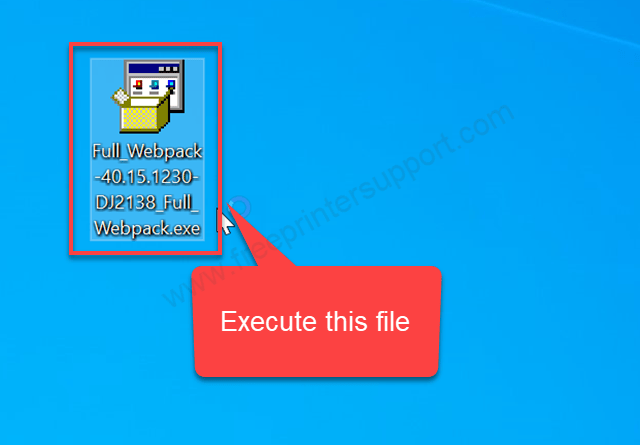
Step 1: Download the downloaded driver file “Full_Webpack-40.15.1230-DJ2138_FullWebpack.exe” to execute the automatic installation wizard.

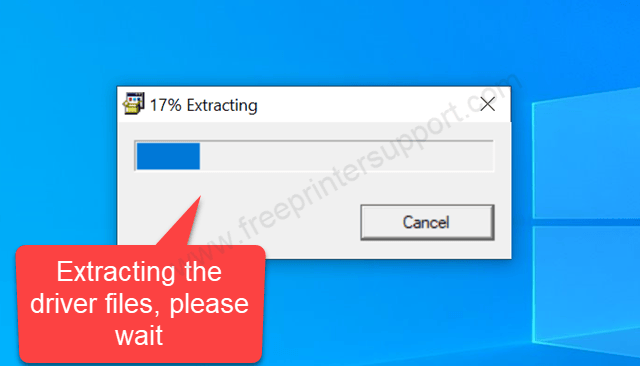
Step 2: It is now extracting the drivers, so please wait for that.

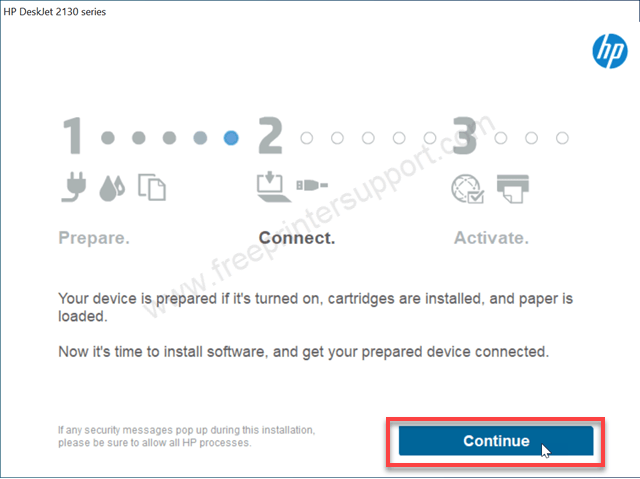
Step 3: Click on Continue. The installation wizard has been started and it is saying, please be ready with your printer. Please make sure the ink cartridges are installed correctly.

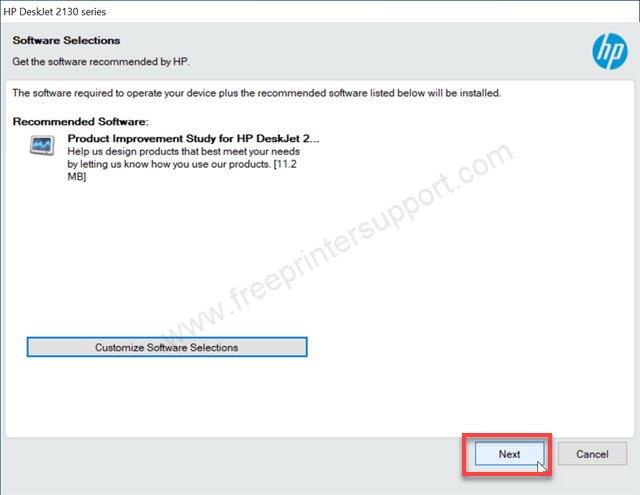
Step 4: It is now asking to select which software you would like to install, or if you want the default settings, just click on Next. Just click on Next. If you want to select one by one which software you like or which software you would like not like to install, then you can go to customize software selection. After that, select the software you would like to install and click on next.

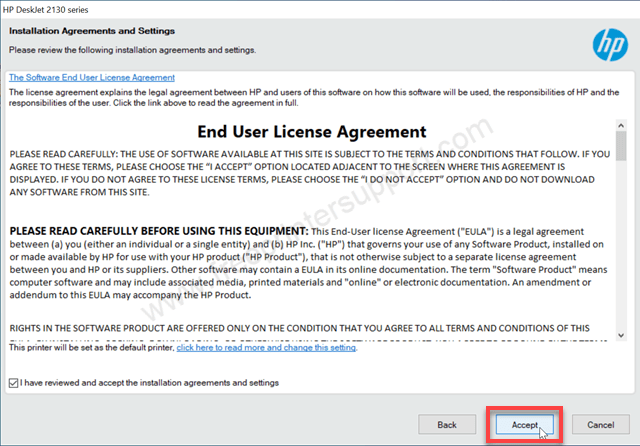
Step 5: Accept the user agreement of the software by clicking on the accept button.
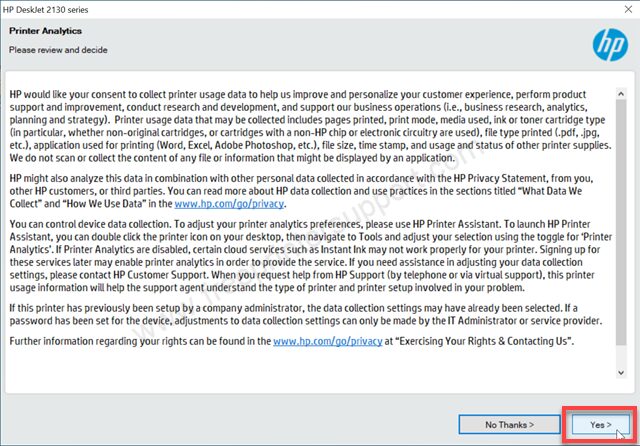
Step 6: Opt for sharing of improved analytics data to HP by clicking on the Yes or No Thanks button.
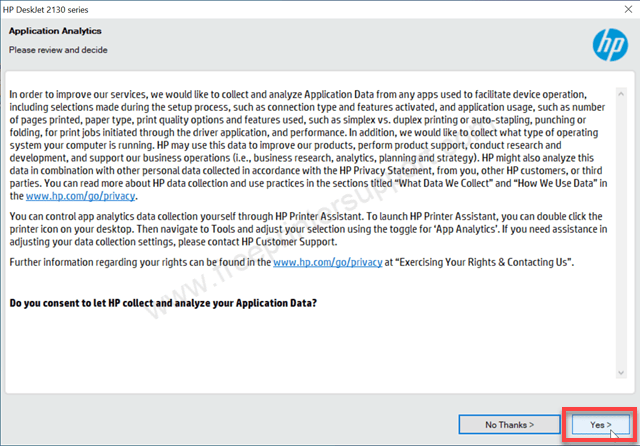
Step 7: Now click on Yes to accept to share the application analytics data to HP.
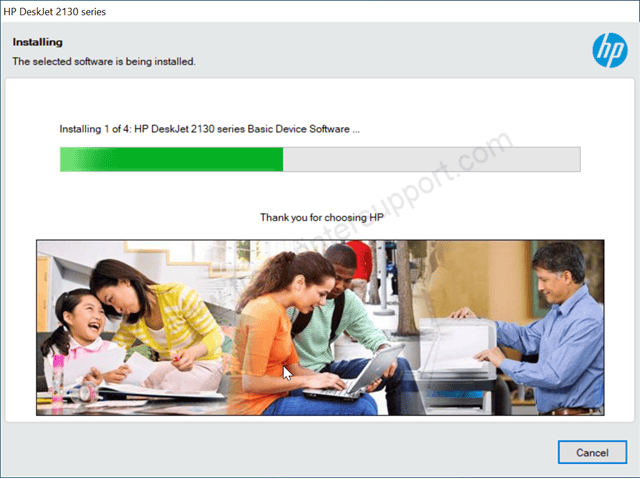
Step 8: It is now installing the drivers, so please wait for that. It will take some time. So please be patient.
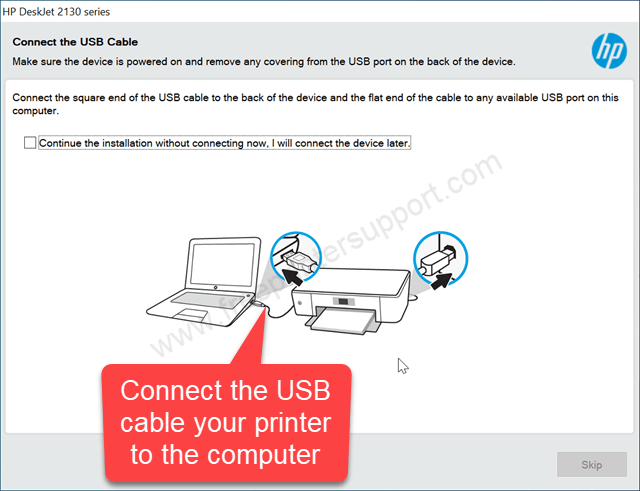
Step 9: Now it is asking to connect the USB cable of your printer to the laptop. So please connect the cable. Make sure the printer is powered on. This screen will auto-detect the printer once you connect the USB cable of your printer to the computer. Please wait for automatic detection on this screen.

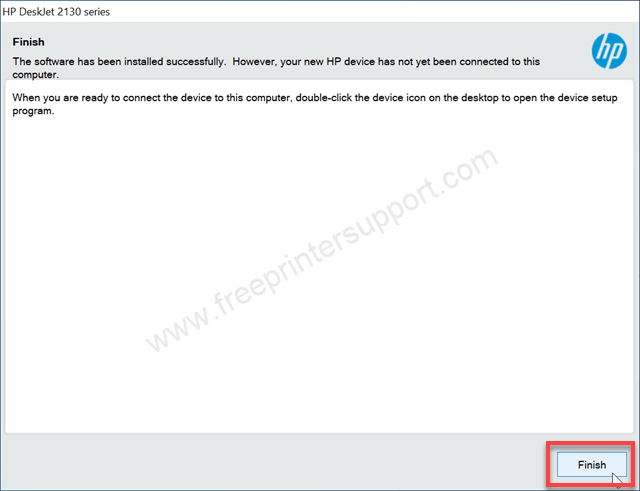
Step 10: As you can see, the printer HP DeskJet 2138 has been installed successfully. Please click on the Finish button to complete the installation process.
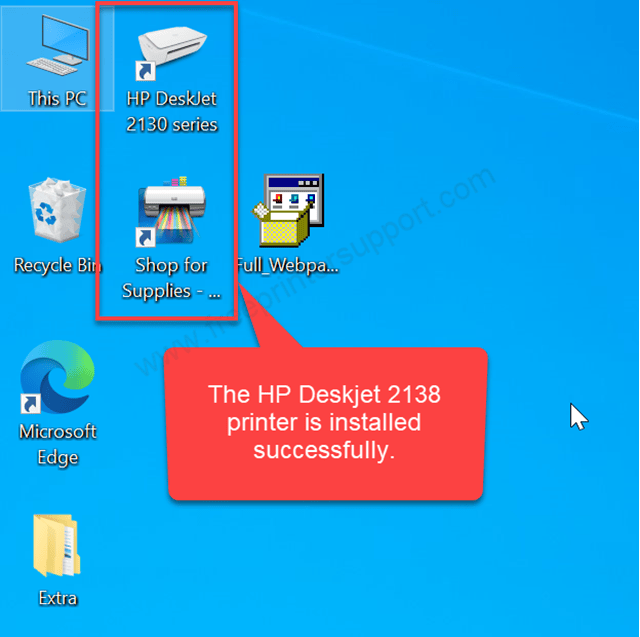
Step 11: As you can see, all the necessary icons have also been installed on the desktop. Please go to the printer page, then go to HP 2138 printer, and then print a test page from the printer.

HP Deskjet 2138 Printer Full Specifications
The HP DeskJet 2138 is primarily designed for home users and students. It is an all-in-one printer that allows you to print, scan, and copy documents with a single device.
This printer offers low running costs because it uses HP Ink Advantage technology, which helps reduce the cost of printing. However, it does not support automatic duplex (double-sided) printing.
The HP DeskJet 2138 comes with a flatbed scanner that provides a scan resolution of up to 1200 DPI, delivering clear and detailed scanned documents and photos. It is a compact and lightweight design. Overall, the HP 2138 is a great choice for home users and students who need an affordable and reliable printer for their home. You can also use this printer on your workspace if your it is small.
The HP DeskJet 2138 can print up to 20 pages per minute (PPM) in black and white and up to 16 PPM in color. This is a good printing speed for an inkjet printer and is suitable for home and student use.
This printer only supports a USB connection. The USB port is located on the back of the printer. It does not support Wi-Fi or network connectivity.
The printer includes one input tray that can hold up to 60 sheets of paper and one output tray that can hold up to 25 sheets. Its copy speed is up to 5 copies per minute (CPM). You can make up to 9 copies in a single command. This printer does not support borderless printing. It can only print documents and photos with white margins around the edges.
The printer measures 245 mm in width, 305 mm in depth, and 150 mm in height. It weighs approximately 3.4 kg, making it compact and easy to place on a desk or small workspace.
Inside the box, you will receive the printer, a USB cable, a driver CD, a user manual, and a power cable. So, that’s all about this printer. I have explained where and how to download the driver, and then how to install it, and all the specifications and features about this printer. Hope you like it. Thanks.