


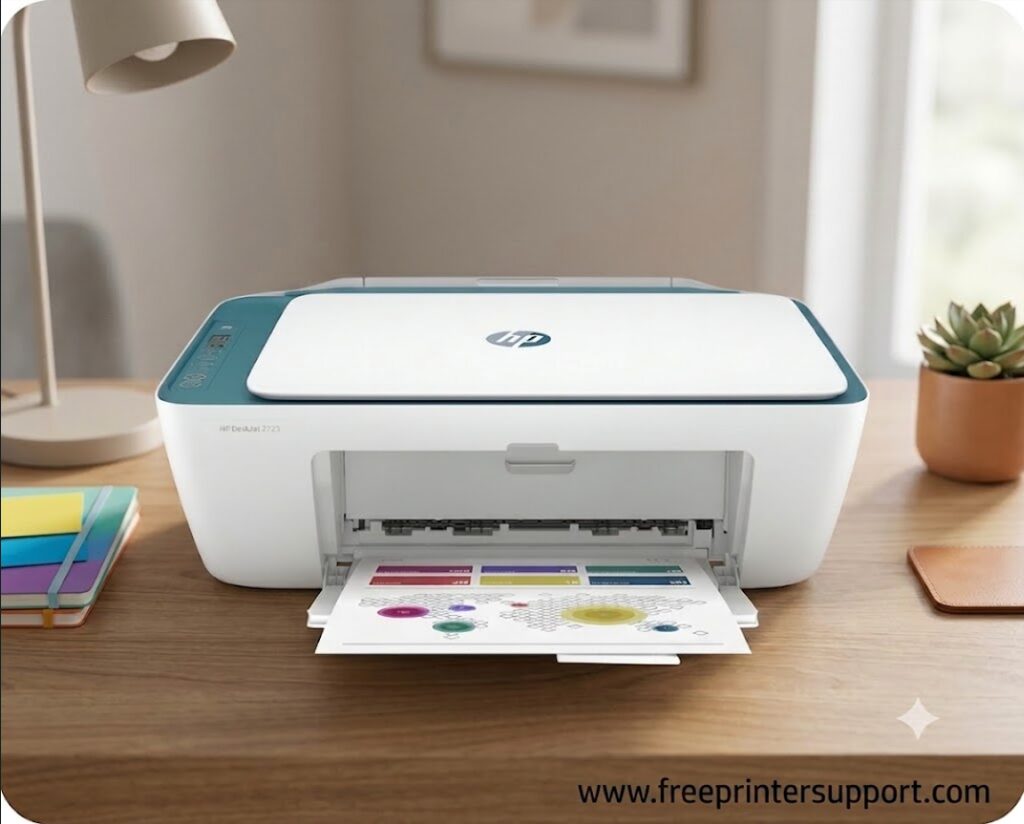
HP Deskjet 2729 printer is an all-in-one printer that can print, scan, and copy. This printer uses inkjet technology to print. This is a color printer with USB and wireless (WiFi) connectivity. It is a very versatile printer with lots of features. To use all the features through your computer, you will require to install its driver and software on your computer. If you would like to install it on your mobile, then you can install its app from the Play Store, and then you can easily set up the printer using the app.
To connect this printer to your computer, you will require its driver. You can download the HP 2729 driver from its official website or download the same driver from the download section given below. I have provided the latest driver download link. This printer supports Windows 11, 10, 8, 8.1, 7, Vista, XP (32bit/64bit), Server 2000 to 2026, Linux, Ubuntu, Mac 10.x, 11.x, 12.x, 13.x, 14.x, macOS 15 Sequoia, 26.x Tahoe Operating Systems. operating systems.
Advertisement
After downloading the driver, you will have to install it properly on your computer. To properly install it on your computer, you will have to follow the proper steps that are given below, just beneath the download section. You can download, you can follow the steps from there for the proper installation. So, let’s start the installation process by downloading the drivers first.
Download HP Deskjet 2729 Driver Download for Windows / Linux / Mac
In order to download the driver, you will have to click on the below given download link, according to your operating system version. If you have any problem in downloading the driver from the below link, you can download it from its official website, which is also given below – beneath the given drivers.
HP Deskjet 2729 Driver for Windows
Supported OS: Windows 11, 10, 8, 8.1, 7, Vista, XP (32bit/64bit), Server 2000 to 2026
Full feature driver download for Windows 11, 10, 8, 8.1, 7, Server: Download Standalone Driver v16.2.4
HP Easy Start driver download for Windows All Editions: Download (Online Installer)
Firmware download for Windows All editions: Download (Released on May 25, 2026)
HP Deskjet 2729 Driver for Mac
Supported OS: Mac 10.x, 11.x, 12.x, 13.x, 14.x, macOS 15 Sequoia, 26.x Tahoe Operating Systems.
HP Easy Start driver download for Mac All Editions: Download
Firmware download for Mac All Editions: Download (Released on May 25, 2026)
HP Deskjet 2729 Driver for Linux
Supported OS: Linux & Ubuntu REM/DEB (32bit / 64bit)
Universal driver download for Linux All Editions: Download (Universal)
OR
Alternatively, you can download the HP Deskjet 2729 driver from HP’s official website.
How to Install HP Deskjet 2729 Printer Driver on PC
After downloading the drivers, you will have to follow the below given step-by-step instructions carefully to properly install this printer.
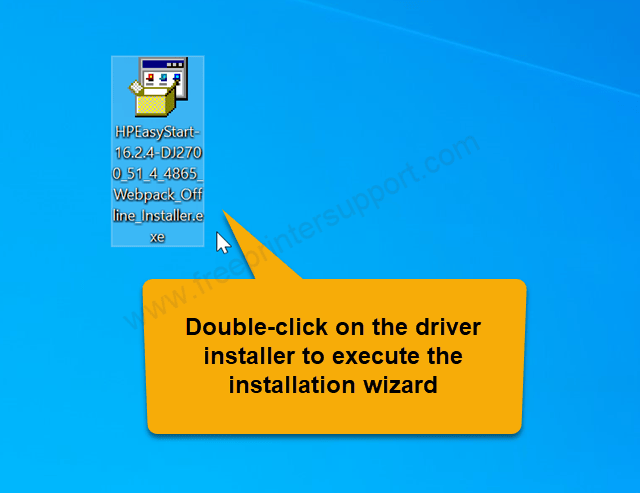
Step 1: Double-click on the downloaded driver file that you have just downloaded from above given download section to execute the installation wizard.

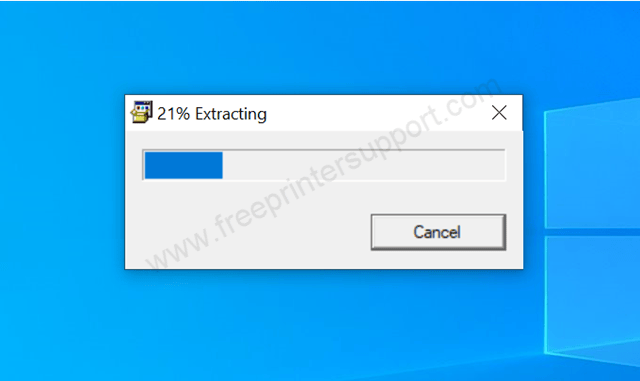
Step 2: It is now extracting the driver’s file, so you will have to wait for that.

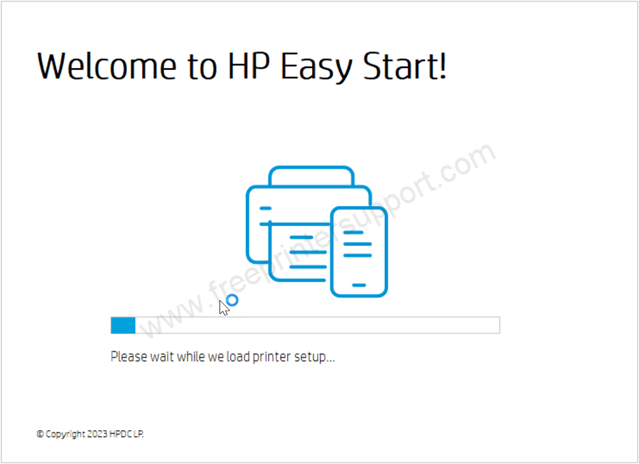
Step 3: It is now loading the installer, so please wait for that.

Step 4: Please accept the term and license agreement by clicking on continue.

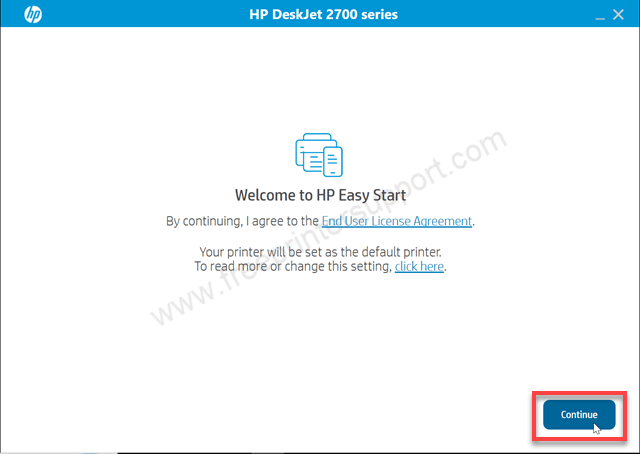
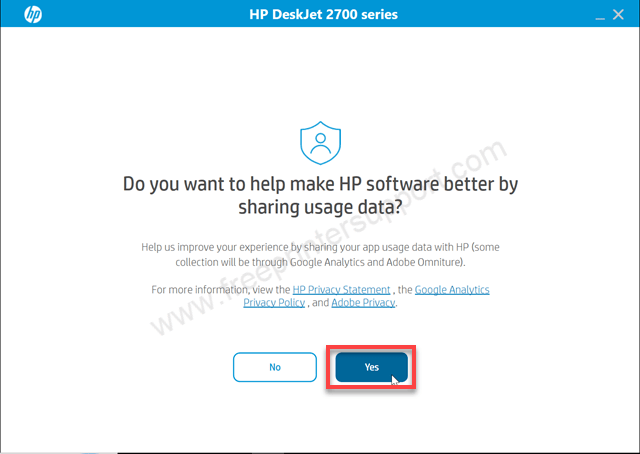
Step 5: Please opt for yes or no, if you want to share the software data with HP, then click on yes. Or if you don’t want to share it, then you click on no. HP asks for this information because they wants to improve their software. So, we should not have problem to accept it and click on Yes. I am going to accept it and click on Yes.
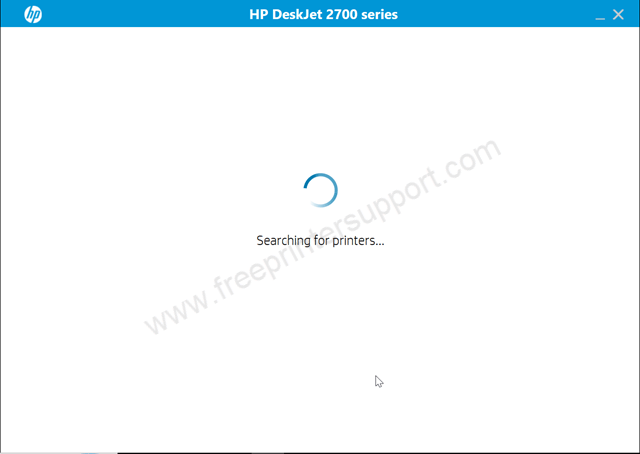
Step 6: Now it is searching for the printer, so make sure your printer should be connected to your Wi-Fi router. If you don’t have Wi-Fi connectivity, then please connect the printer to the computer through the USB cable, so that it can detect it and go further.
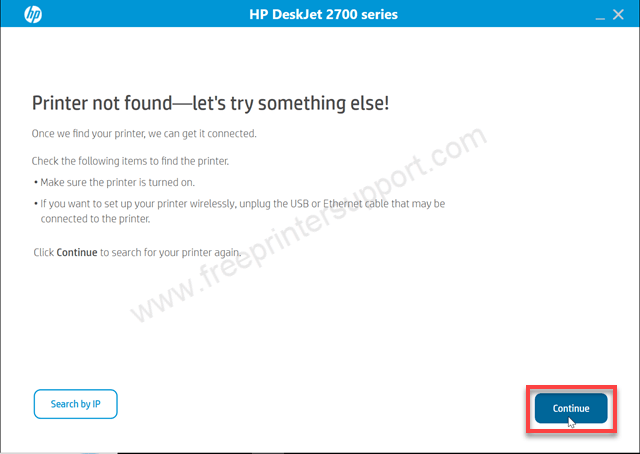
Step 7: It is saying the printer not found. So please click on continue to get more specific option to connect this printer to the computer.
Step 8: Now please choose the preferred connection type, wireless or USB, and click on continue.
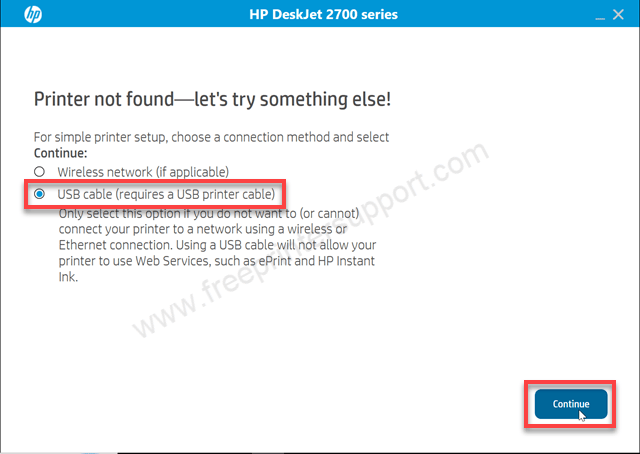
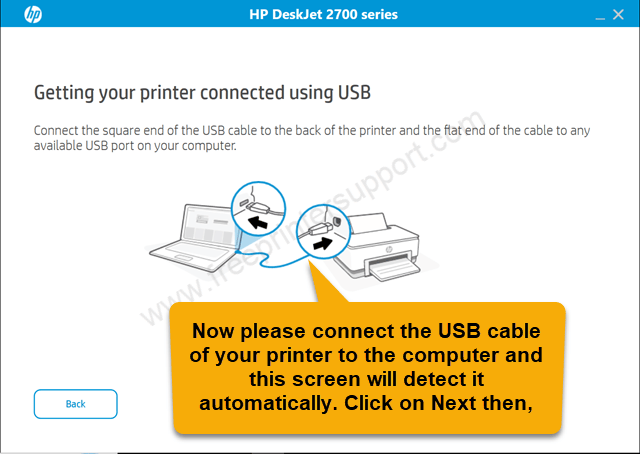
Step 9: Now please connect the USB cable of the printer to the computer, and make sure the printer is turned on. I recommend you to connect the USB cable to the back of the computer, not in the front port, because the front port sometimes doesn’t work properly. Please connect the printer and the screen will detect the printer connection automatically, and click on continue. Then click on Finish to complete this installation process.
Specifications & Features:
HP DeskJet 2729 is an all-in-one printer with print, scan, and copy features, with Wi-Fi and USB connectivity options. Speed of this printer is 7.5 pages per minute in black and 5.5 pages per minute in black color, with a resolution of 4800 by 1200 DPI resolution. The input tray, it has an input tray that can hold up to 60 pages at a time, and also has an output tray that can hold 25 pages at the same time.
It has an inbuilt scanner, a flatbed type scanner, that can scan documents and images. This printer is ideal for home and small offices, office users. This printer is a derivative printer that comes from the HP DeskJet 2700 All-in-One Printer series.
So, in this page, I have explained where and how to download the driver and software, and how to install it, and the full specification & main features of this printer. Hope you liked it.