


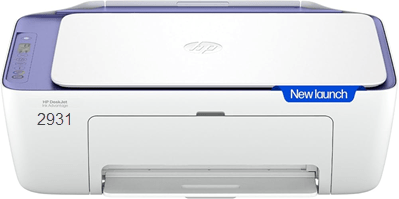
HP DeskJet 2931 is an all-in-one color printer with WiFi connectivity. It is a very compact designed printer with lots of features. To use all the features through a computer, you need to install its latest version driver on that computer.
Although you can easily download the driver from the HP DeskJet 2931 official download page, but make this process easy, I have given the latest version driver download link in the download section below.
Advertisement
After downloading the driver, you must know the right process to install this printer. For this, I have prepared a step-by-step installation guide which is given just beneath the download section. So, let’s start the installation process by downloading the driver first.
Download HP DeskJet 2931 Printer Driver in Windows
To download the driver, click on the download link according to version of your operating system.
Driver for Windows
Supported OS: Windows 11, 10, 8, 8.1, 7, Vista, XP (32bit / 64bit), Server 2000 to 2025
Full feature driver for Windows 11, 10, 8, 8.1, 7: Download (Full Feature) | Recommended
Firmware download for Windows All Editions: Download (Firmware)
Driver for Mac
Supported OS: Mac 10.x, 11.x, 12.x, 13.x, 14.x, macOS 15 Sequoia, 26.x Tahoe
HP Easy Start for Mac 10.x, 11.x, 12.x, 13.x, 14.x, macOS 15.x, 26.x: Download (Universal Driver)
Firmware Download for Mac All Editions: Download (Firmware)
Driver for Linux
Supported OS: Linux & Ubuntu REM/DEB (32bit / 64bit)
Full feature driver for Linux and Ubuntu: Download (Full Feature)
OR
You may download the HP DeskJet 2931 driver directly from the HP’s official website.
How to Install HP DeskJet 2931 Printer Driver
In order to install this 2931 printer, you will have to apply the following steps carefully step-by-step.
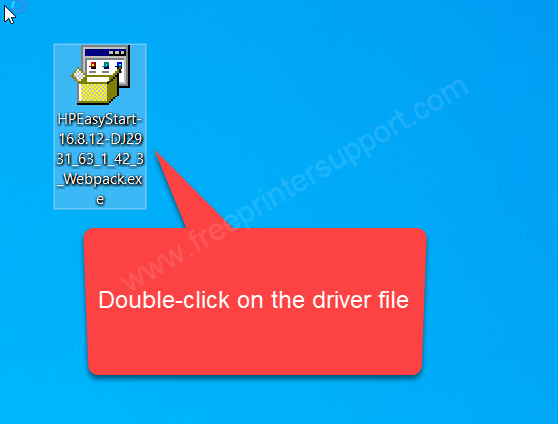
Step 1: Double-click on the driver setup file “HPEasyStart-16.8.12-DJ2931_63_1_42_3_Webpack.exe” to execute the installation wizard.

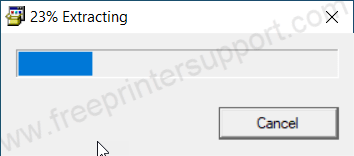
Step 2: It is extracting the driver files, so please wait for that.

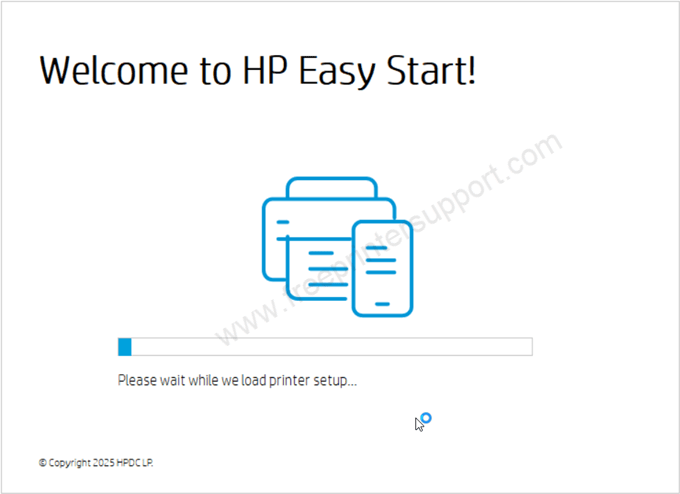
Step 3: Please wait while loading the setup file.

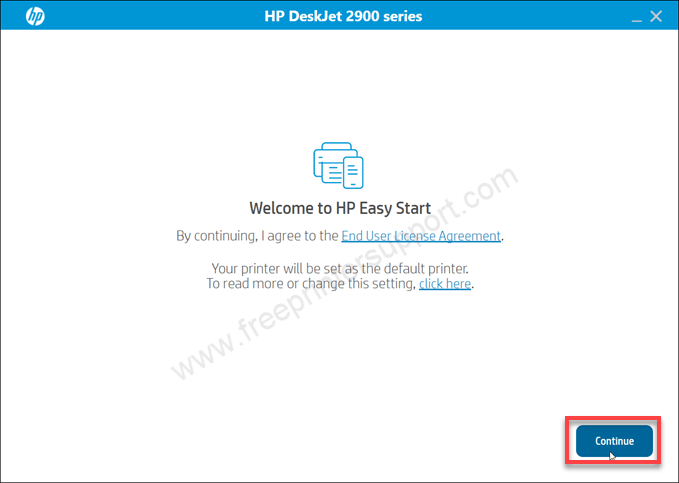
Step 4: Please agree the term and conditions to click on continue.

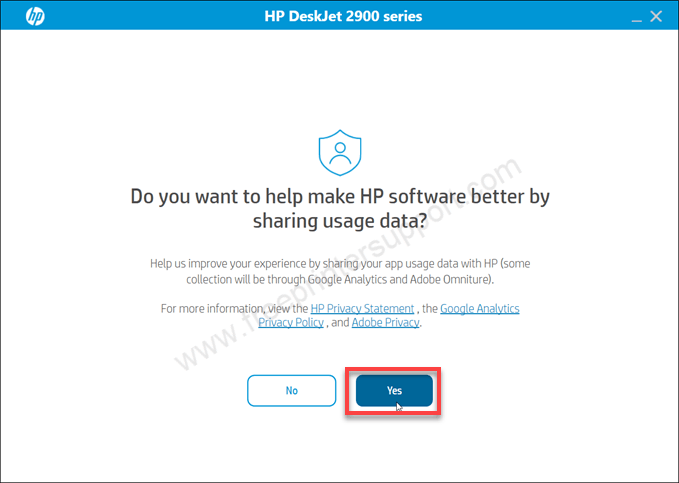
Step 5: Click on Yes to agree to share the data to HP. You may option for no, if you don’t want to share.
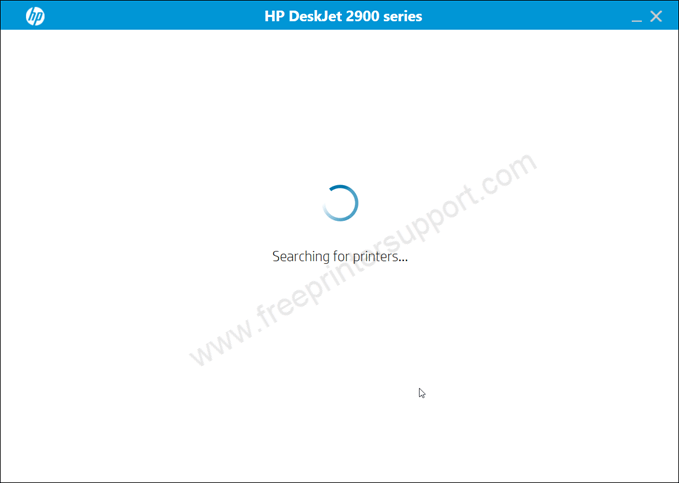
Step 6: It is now looking for the printer, so please connect the printer to the computer.
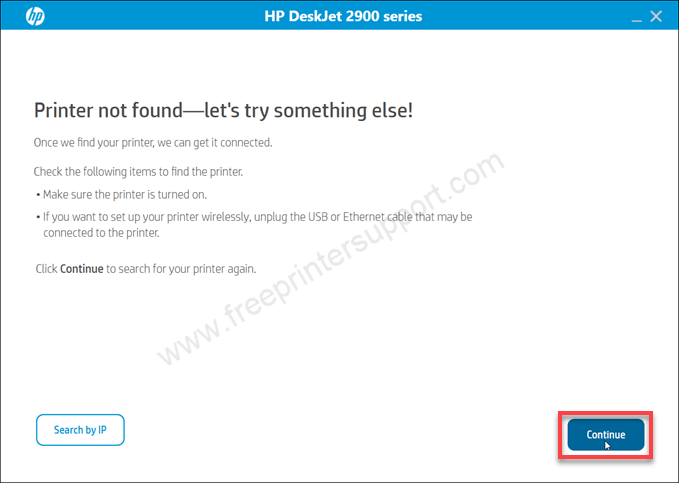
Step 7: Click on continue to get more specific options of connectivity.
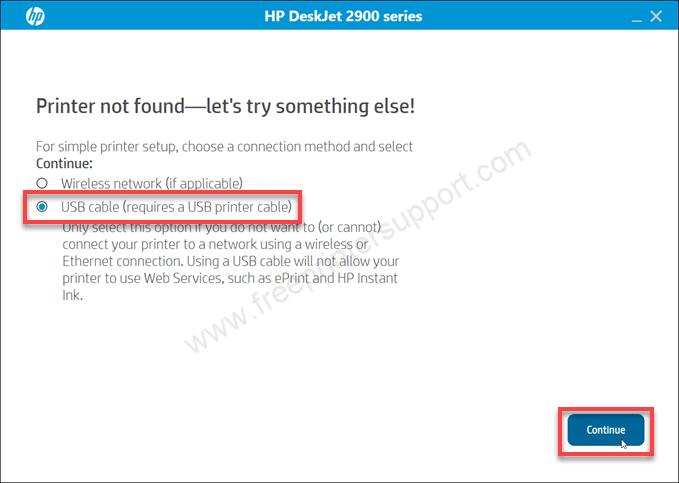
Step 8: Now, please choose the preferred connection type and click on continue.
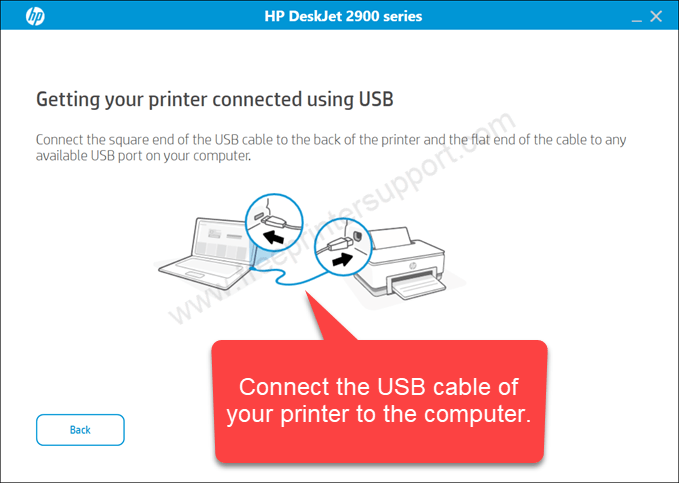
Step 9: Now, please connect the USB cable of your printer to the computer and make sure the printer is turned ON.
Specifications & Features
HP DeskJet 2931 is a multi-functional printer with print, copy and scan features. It has a very compact LCD display to navigate printer settings easily. It has an input tray which can hold up to 60 pages at a time and an output tray which can also hold 25 pages at a time. This printer supports plain and photo A6 to A4 size (up to 75gsm) papers. Unfortunately, it doesn’t support borderless printing.
The print speed of this printer is up to 20 PPM at 1200 dpi resolution and the copy speed is 6ppm at 300 dpi resolution. It doesn’t have auto-duplex feature, you will have to do it manually. This printer produces 4800×1200 dpi printing which gives a very crisp print outs.
There are two connectivity options to connect this printer to a computer or mobile phone: WiFi and USB. To connect this printer to your computer, you will require to install its latest version driver on your computer. But if you want to setup this printer on your mobile phone, then you will have to install Apple AirPrint, Hp print service plugin app on your mobile phone.
It has a flatbed scanner which also needs a driver to be installed on the connected device. The scan resolution is also very good 1200 DPI. It can scan to JPG, PNG and PDF format.
It has a 1GHz processor and 64MB RAM to handle multiple commands at a time. This printer supports Windows 11, 10, 8, 8.1, 7, Mac and Linux OS.