


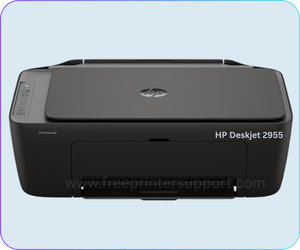
HP DeskJet 2955 is an all-in-one A4 wireless printer that can print, scan and copy in color and black & white. This printer supports the latest operating systems like Windows 11, 10, Server 2026, Mac 26.x etc. In order to setup this printer on a PC or any other device like mobile phones or tablets, you will have to install its driver & software on a PC and install the HP app on mobile devices.
Although the driver CD that came along with the printer, sometimes it gets damaged or misplaced. In this scenario, you can easily download its driver from its official website. Alternatively, you can download the HP DeskJet 2955 drivers from the download section provided on this page below. You just need to click on the download button according to the operating system version you have.
Advertisement
After download the driver, I suggest you to please follow the given step-by-step installation guide that I have prepared when I was installing this printer on my computer. So without wasting time, let’s start the installation process by downloading the drivers first.
Download HP DeskJet 2955 Driver for PC
In order to download the driver of HP DeskJet 2955 printer, you will have to click on the below given download button according to the operating system version where you want to install this printer.
HP DeskJet 2955 Driver for Windows
Supported OS: Windows 11, 10, 8, 8.1, 7, Vista, XP (32bit / 64bit), Server 2000 to 2026
Full Feature Driver for Windows 11, 10, 8, 8.1, 7 → Download Full Feature (373 MB) | Recommended
Full Feature Driver for Windows 11 ARM Only → Download ARM Driver (384 MB)
Firmware download for Windows All Versions → Download Firmware (14.5 MB)
HP DeskJet 2955 Driver for Mac OS
Supported OS: macOS 10.x, 11.x, 12.x, 13.x, 14.x, macOS 15 Sequoia, 26.x Tahoe
Full Feature Driver for macOS 10.x, 11.x, 12.x, 13.x, 14.x, 15.x, 26.x→ Download Easy Start Driver (6.26 MB)
Firmware download for macOS 10.x, 11.x, 12.x, 13.x, 14.x, 15.x, 26.x→ Download Firmware (17.5 MB)
HP DeskJet 2955 Driver for Linux
Supported OS: Linux & Ubuntu
Full Feature Driver for Linux and Ubuntu (32bit / 64bit) → Download Universal Driver (25.9 MB)
HP DeskJet 2955 Driver for Android (Mobile Phones & Tablets)
Supported OS: Android Mobile Phones
Full Feature Driver for Android Mobile Phones → Download Android App (15 MB)
OR
You may download the HP 2955 driver from the HP’s official website
How to Install HP DeskJet 2955 Printer on PC
After download, you will have to install the downloaded driver properly on your computer. To install it properly, I have given a step-by-step installation guide, which will help you with that. I have prepared a step-by-step installation guide for installing this printer on my computer. That’s why I am sharing it with you. So I suggest you to follow the steps.
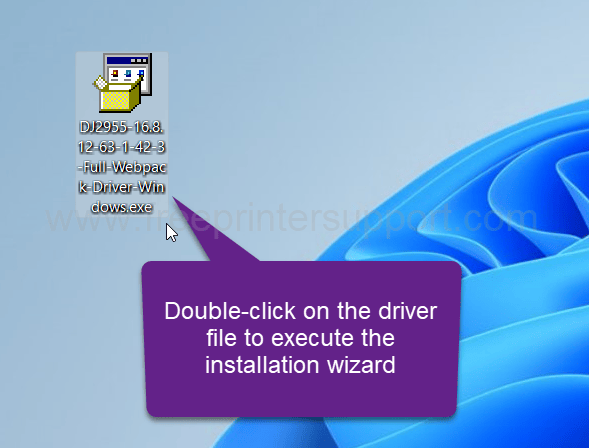
Step 1: Double-click on the driver file to execute the installation wizard.

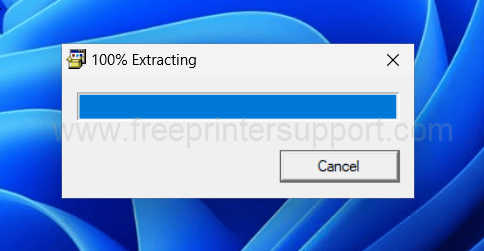
Step 2: The installer is now extracting the driver file.

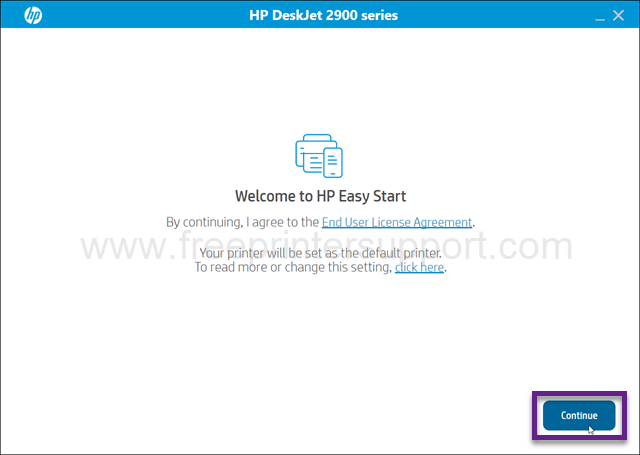
Step 3: Click on Continue.

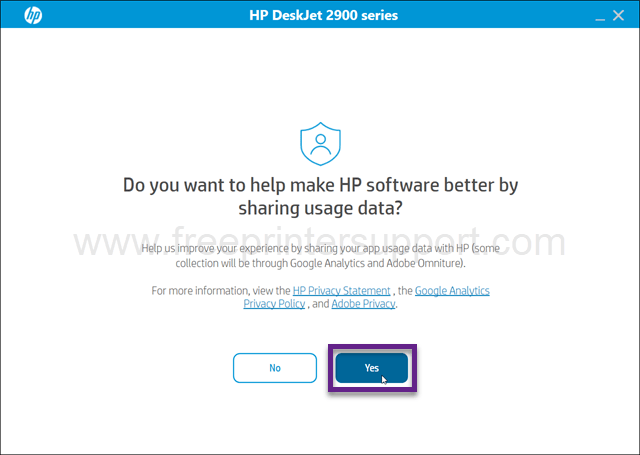
Step 4: Click on Yes to accept the terms of use for this software.
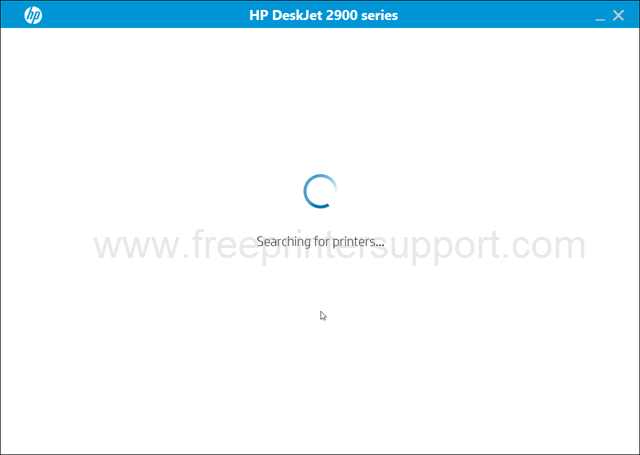
Step 5: The program is now searching for the printer. So make sure the printer is connected to the computer and it should be turned ON.
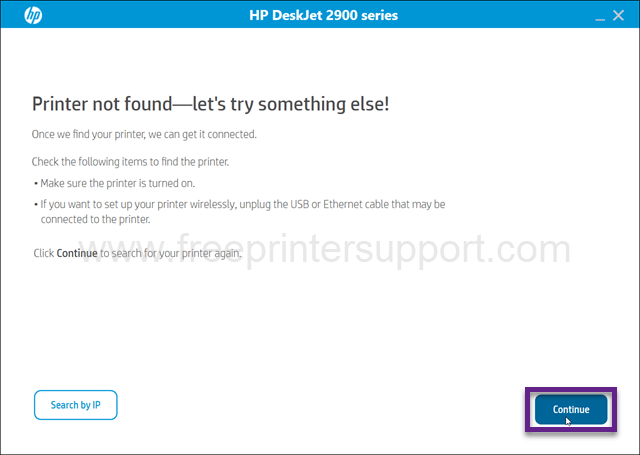
Step 6: It says the printer is not found. Click on continue to get more specific options for connection.
Step 7: Now please select the preferred connection type and click on Next.
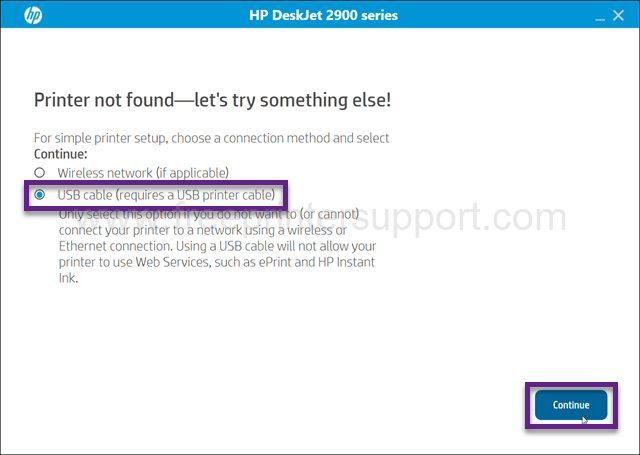
Step 8: Now please connect the printer’s USB cable to the computer and make sure the printer is turned ON.
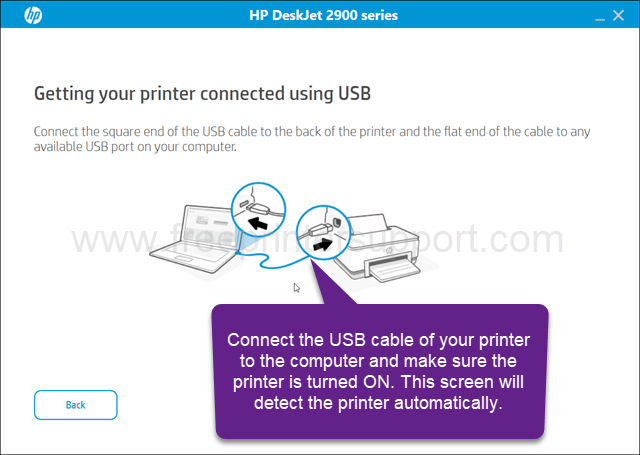
Here is how you can install this HP Deskjet 2955 printer driver on Windows 11 computer. You can apply the same steps and same driver for Windows 10, 8, 8.1, 7 as well.
HP DeskJet 2955 Full Specifications
HP Deskjet 2955 is an AI-assisted printer that gives you better print quality with less ink wastage. This printer has a built-in processor of 1.0 GHz with 64MB RAM that can smoothly handle multi-tasking. It has one LCD display on the top with a few buttons that can help you to operate the printer. The dimensions of this printer are 425 mm in width, 304 mm in depth and 154 mm in height. The approximate weight of this printer is around 3.4 kg. This is an inkjet printer, so it takes very low power consumption, around 2.5 watts while printing, which is very low.
The print speed of this printer is 20 ppm with a resolution of 1200 x 1200 dpi which is also very good in inkjet printers. The maximum resolution it can give you is 4800 x 1200 DPI with a print speed of around 8ppm. It has one input tray that can hold 60 pages at a time, and one output tray that can hold 25 pages all together. This printer supports A4, legal, letter and B5 size papers. It has a flatbed scanner that can scan with the CIS technology. The scanner resolution is also 1200 by 1200 DPI. It can scan into JPEG, PDF and PNG format. The copy speed of this printer is around 6 CPM in black and 3 CPM in color, with a resolution of 300 by 300 dpi. This printer has no fax and no ADF & auto-duplex function.
This printer has two connectivity options. One is through USB and the second one is through Wi‑Fi. The best thing is, its Wi‑Fi supports dual band: 2.4 and 5 GHz as well. This printer uses two ink cartridges: black and a tri-color. The model number of the cartridges are HP 68 black and HP 68 tri-color. It uses pigment-based in black and dye-based in color ink cartridges.
Setting up this printer on a computer through USB cable or WiFi is very easy. You will need a driver to install it on a PC, and you will need a HP dedicated app to set up this printer on a mobile phone or tablet.