


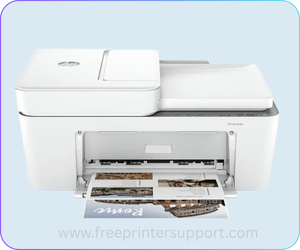
HP DeskJet Ink Advantage 4275e is an all-in-one printer with inkjet technology. It has print, copy and scan feature in it. It also has a flatbed scanner with CIS and ADF feature which gives you the freedom to copy and scan multiple pages automatically. To use all these features, you will have to download and install its full feature driver on PC.
You can either download its driver from the download section below or download the driver from HP’s official website. This printer supports Windows 11, 10, 8, 8.1, 7, Vista, XP (32bit / 64bit), Server 2000 to 2026, Linux, Ubuntu, Mac 10.x, 11.x, 12.x, 13.x, 14.x, 15.x, 26.x Tahoe Operating Systems.
Advertisement
After downloading the drivers, go to the “How-to“ install section below and follow the given step-by-step guide. I prepared it when I was installing it on my Windows 10 PC, but you can apply the same steps and same driver for Windows 11, 8 and Windows 7 as well. Let’s start the installation process by downloading this driver.
Download HP DeskJet 4275e Printer Driver for Windows / Linux / Mac
In order to download the driver, go to the given list below and click on the download button according to the operating system version you have.
HP DeskJet 4275e Driver for Windows
Supported OS: Windows 11, 10, 8, 8.1, 7, Vista, XP (32bit / 64bit), Server 2000 to 2026
Full feature driver download for Windows 11, 10, 8, 8.1, 7 – Download (Full) | Recommended
Firmware download for Windows 11, 10, 8, 8.1, 7 – Download (Firmware)
HP DeskJet 4275e Driver for Mac
Supported OS: Mac 10.x, 11.x, 12.x, 13.x, 14.x, 15.x, 26.x Tahoe Operating Systems.
HP easy start driver download for Mac OS All Editions – Download (Universal Driver)
Firmware download for Mac OS all editions – Download (Firmware)
HP DeskJet 4275e Driver for Linux
Supported OS: Linux, Ubuntu
Full feature driver download for Linux OS All Editions – Download (Full)
OR
You may download the same drivers directly from HP’s official website.
How to Install HP DeskJet 4275e Printer Driver
To install this printer on a PC, I suggest you to please follow the following instructions carefully.
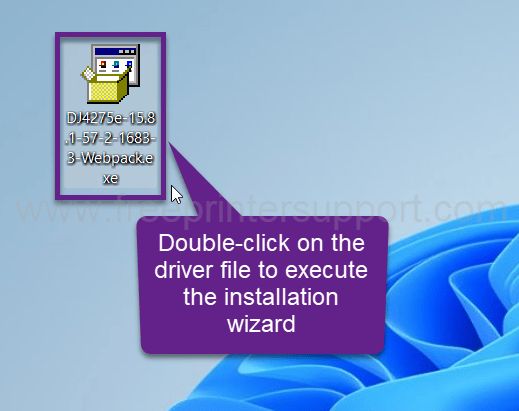
Step 1: After downloading the drivers from the above given download section., double-click on the driver file to execute the installation wizard.

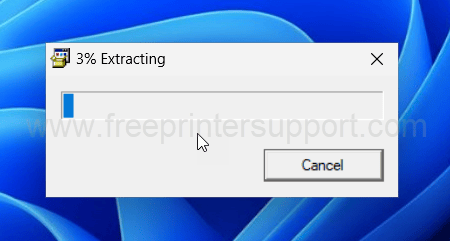
Step 2: It is extracting the driver’s file, so please wait for that.

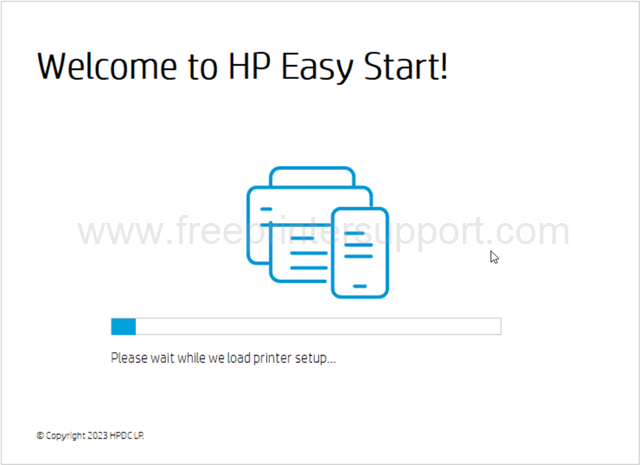
Step 3: The installation wizard is now loading up, so please wait for that as well.

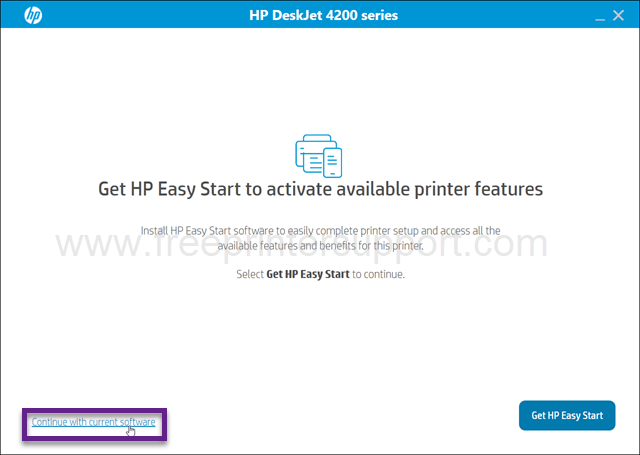
Step 4: Please click on the link, continue with current software.

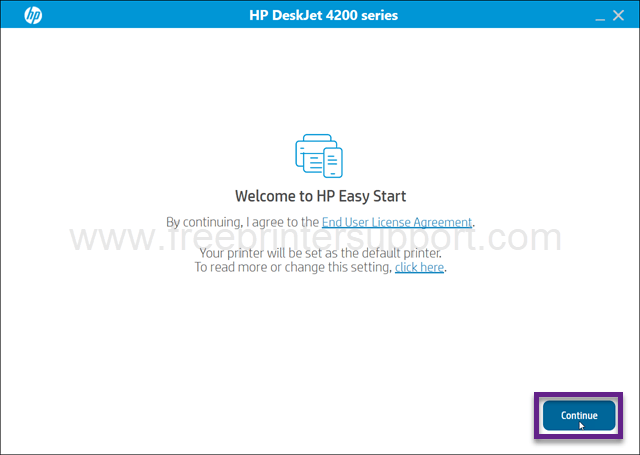
Step 5: Please accept the term and condition to use this software by clicking on continue.
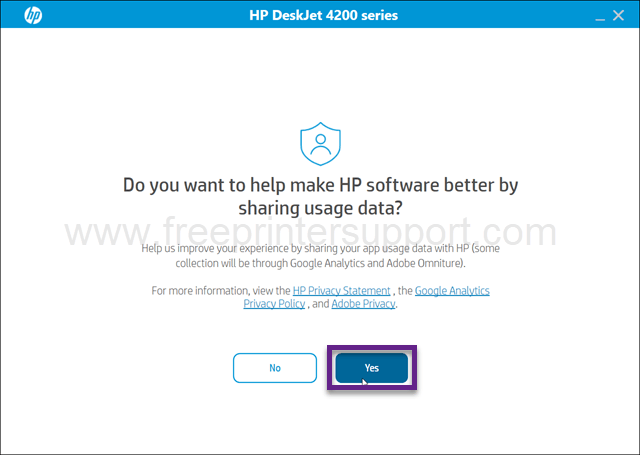
Step 6: Please opt yes or no to share the software data to HP. I am going to click on yes.
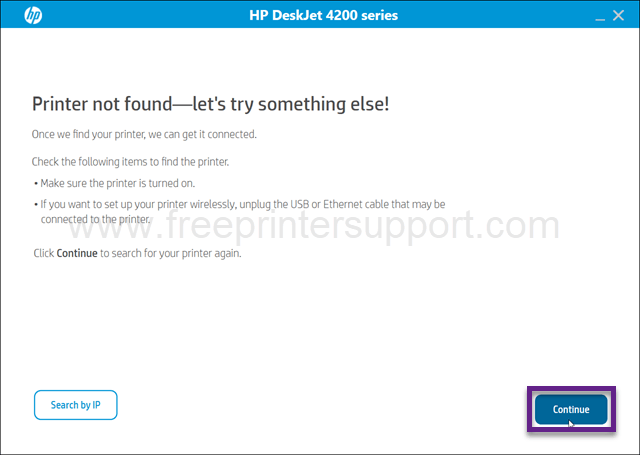
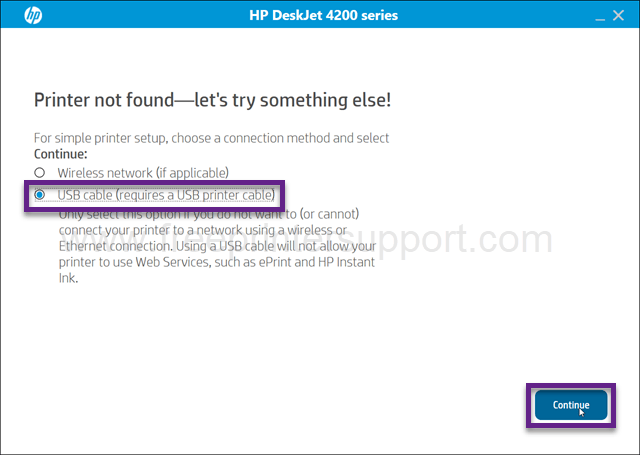
Step 7: It says the printer is not found in the current situation. Please click on continue to get more specific options to connect the printer.
Step 8: Please choose the preferred connection type and click on continue. If you’re going to choose wireless, then make sure your printer should be connected to the router first.
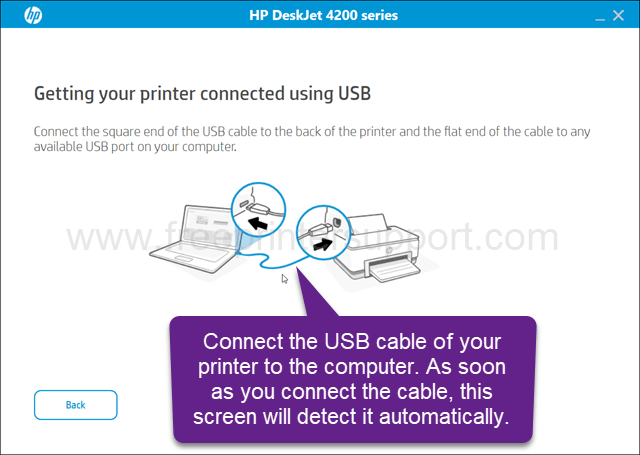
Step 9: It is now asking to connect the USB cable of your printer to the computer. So please connect the cable and make sure the printer is turned on. Once you connect the printer, this screen will detect it automatically. Please wait for that after connecting the printer. After that click on continue and finish to complete the installation process.
HP DeskJet 4275e Printer Full Specifications
HP Deskjet 4275e is an all-in-one printer with print, copy and scan feature with WiFi connectivity. The print speed of this printer is 20 ppm in black and 16 ppm color at 1200 x 1200 dpi resolution. It has ADF on the top but don’t have auto-duplex feature, you will have to do it manually. You can print up to 1000 pages at a time. This printer doesn’t support borderless printing as well.
Printer Appearance: The printer has a LCD display screen on the top to navigate the printer settings easily. It has a built-in 1 GHz processor with 64MB RAM. This printer only uses 2.8 watts and runs on 240 Volt AC power. The dimensions of this printer are 428mm in Width, 332mm in depth and 200mm in height. The total weight of this printer is 4.8 KG.
Scan: It has a flatbed scanner with ADF feature which can hold up to 35 pages at a time. The scanner uses CIS technology to scan. The maximum scan resolution is 1200 DPI which is extremely good. The scanner gives you the scan speed 2.5 ipm at 200 ppi. You can scan the scanned documents JPEG, TIFF, PNG, BMP and PDF format to scan multiple pages at a time.
Copy: Copy speed is 6cpm in black and 3cpm in color at 300 dpi. You can print up to 9 copies at a time.
Paper: This printer supports A4, B5, A6 and Envelopes size papers. It has one input tray that can hold 60 pages at a time and one output tray that can hold 25 pages.
Connectivity: This printer has 4 connectivity options: WiFi, Bluetooth, Ethernet and USB which is more than enough to connect any latest device to this printer. To connect this printer to mobile devices, you can use Apple and Android HP apps. In Apple, use AirPrint.
Ink Cartridges: This printer uses two ink cartridges – one black and one tri-color HP 67 model number cartridge. It comes in three variants – one is standard and another one HP67XL and XXL which has more ink than the standard one.
Supported OS: This printer supports Windows 11, 10, 8, 8.1, 7, Vista, XP (32bit / 64bit), Server 2000 to 2026, Linux, Ubuntu, Mac 10.x, 11.x, 12.x, 13.x, 14.x, 15.x, 26.x Tahoe Operating Systems, Android, Chrome OS, Apple iOS, iPhones, Linux and Ubuntu OS.
In this article, I have explained how and where to download the driver and how to install it and all the specifications of this printer. Hope you like my efforts.