


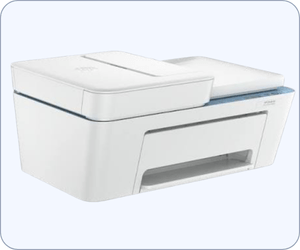
HP DeskJet 4388 is an ink advantage all-in-one printer. Along with lots of other features it has dual band WiFi connectivity and ADF features. To use all these features on your computer you will have to install its driver on your computer. You can download its driver from its official website or you can download the same from the download section given below. I have provided the same download link here for your convenience.
The given driver will support Windows 11, 10, 8, 8.1, 7, Vista, XP (32bit / 64bit), Server 2000 to 2026, Linux, Ubuntu, Mac 10.x, 11.x, 12.x, 13.x, 14.x, macOS 15 Sequoia, 26.x Tahoe Operating Systems.
Advertisement
After downloading the drivers, it is mandatory to know the correct method install this printer on a computer. I have given the step by step installation guide below the download section so that you don’t face any installation problem. Thriller lets start the installation process by downloading the drivers first.
Download HP DeskJet 4388 Printer Driver
In order to download the HP Deskjet 4388 printer driver, you will have to click on the download link from the below given list according the version of your operating system.
HP DeskJet 4388 driver for Windows
Full feature driver for Windows 11, 10, 8, 8.1, 7: Download (Full Feature) | Recommended
HP easy start driver for Windows 11, 10, 8, 8.1, 7: Download (HP Easy Start Driver)
Firmware download for Windows All: Download (Firmware)
HP DeskJet 4388 driver for Mac
HP Easy Start driver for macOS 10.x, 11.x, 12.x, 13.x, 14.x, 15.x, 26.x Tahoe : Download
Firmware download for macOS all editions : Download (Firmware)
HP DeskJet 4388 driver for Linux
Universal driver for Linux & Ubuntu REM/DEB (32bit / 64bit): Download (Universal Driver)
OR
Alternatively you may download the deskjet 4388 driver directly from the HP’s official website
How to Install HP DeskJet 4388 Driver | Step-by-step instructions
After download, you should know the correct method to install this driver on a computer. So I have given a step by step installation guide so that you can install this printer on your computer properly. Please follow the following steps.
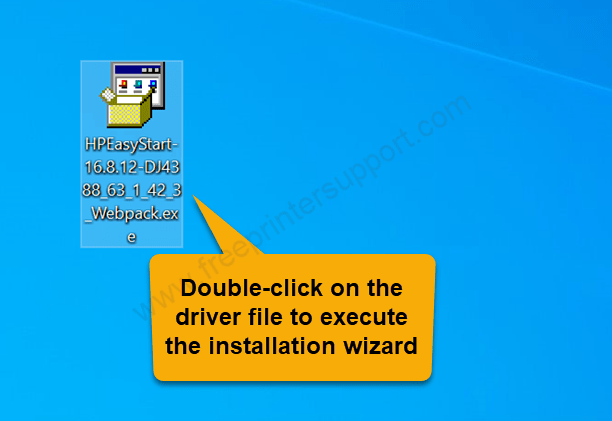
Step 1: Double-click on the driver setup file “HPEasyStart-16.812-DJ4388_63_1_42_3.Webpack.exe” to execute the installation wizard.

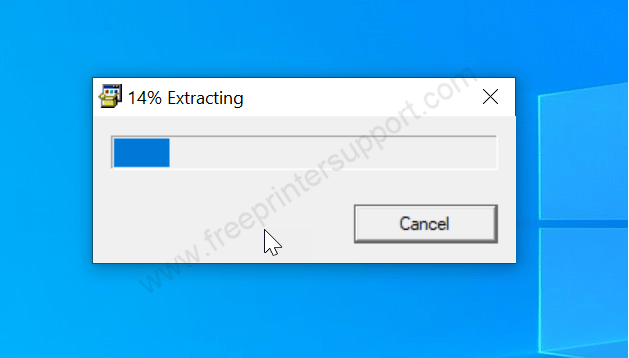
Step 2: Please wait it is extracting the drivers.

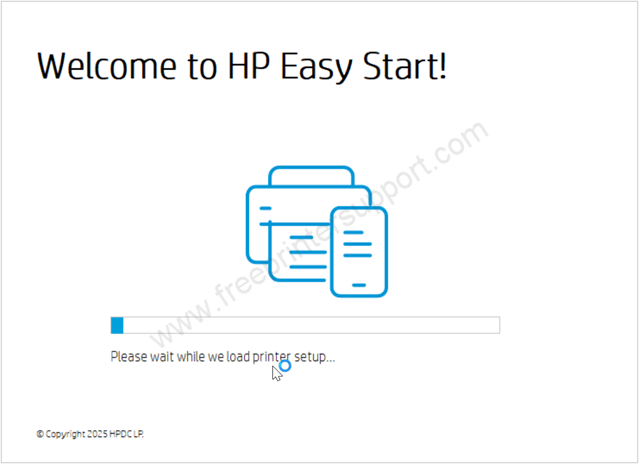
Step 3: Please wait it is loading the setup wizard.

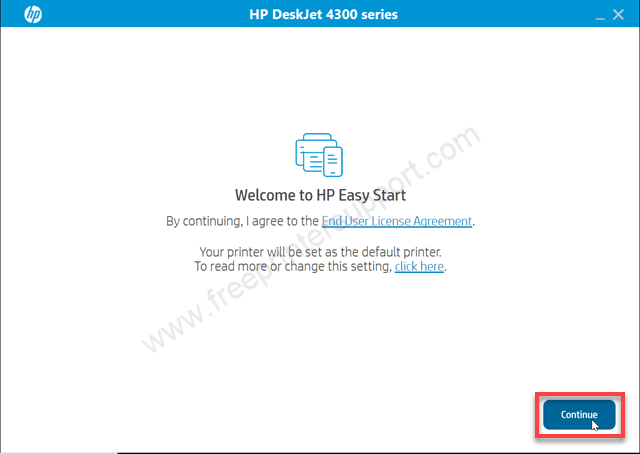
Step 4: Click on continue to accept the term and conditions.

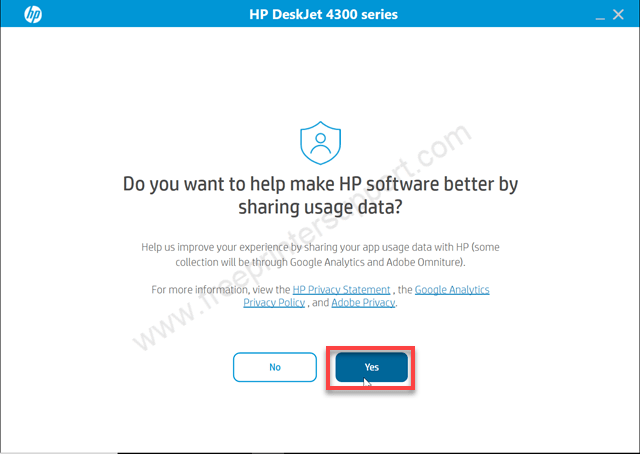
Step 5: Choose yes or no to share the installation process data to HP.
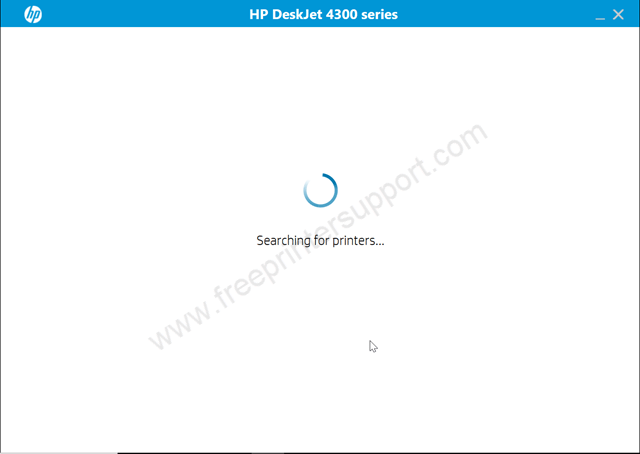
Step 6: It is not searching for the printer so make sure the USB cable and power cable is connected properly and the printer is turned ON.
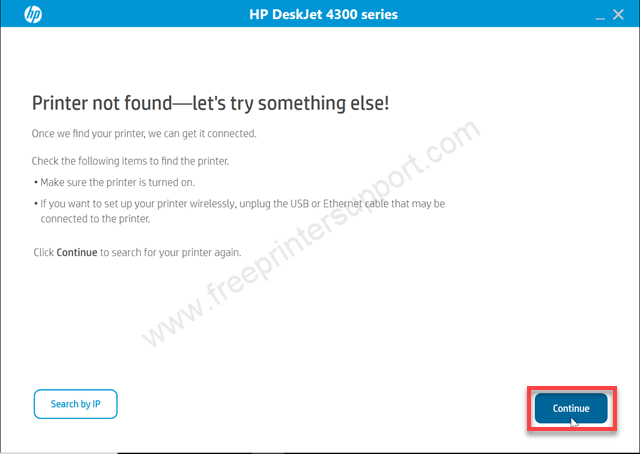
Step 7: It says printer not found. Please click on continue to get more specific option to choose.
Step 8: Now choose the preferred connection type and then click on continue.
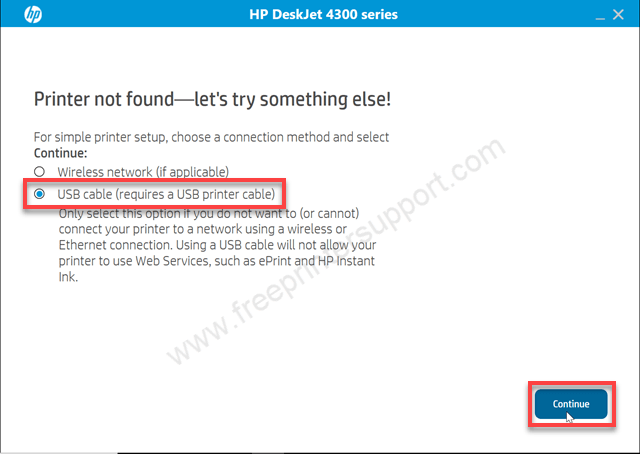
Step 9: It is now asking you to connect USB cable of the printer to the computer and make sure the printer should be turned ON. This screen will auto-detect the printer and redirect you to next page, there you will have to click on continue and finish to complete the installation process.
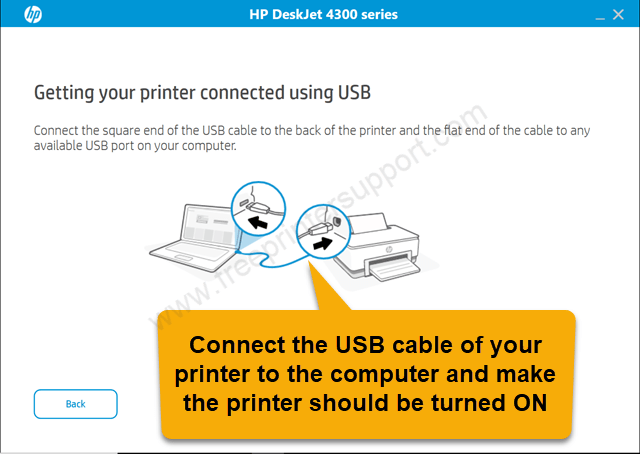
Have you seen that, how simply I have setup this printer. By applying the same steps you also can install this 4388 printer.
Specification & Features
As I have stated the HP Deskjet 4388 printer is an all in one printer it can print copy and scan. It is a simple printer so it uses Ink cartridges which is called inkjet. The Prince paid off printer is up to 20 ppm with a resolution of 1200 DPI. Inkjet printers produce lower print speeds than laserjet printers. This printer has a very tiny LCD display so that you can operate the printer settings easily. It is an all in one printer so it has a 1Ghz processor and 64MB ram to process the multiple print commands.
It has one input tray that can hold 60 pages at a time and an output tray that can also hold 25 pages at once. The ADF hold and process capacity is 25 pages at a time. Desperate supports paper sizes of A4, B5, A6 and envelopes. It is the latest printer so you can install this printer on a Windows 11 computer. If you are using a Mac you can use Apple AirPrint. If you’re installing it on mobile phones like Android so you can use “HP print service plugin”.
It has one Flatbed scanner with ADF (Automatic Document Feeder) feature. The maximum scan resolution is 1200 DPI which is known to be very good. The scan speed of the scanner is 2.5 IPM @ 200 PPI. If you talk about its copy speed then it would be 6 cpm. If you’re talking about the dimensions of this printer so 428MM width, 330mm depth, and 200mm height. The total weight of this printer is 4.81 kg. The power consumption of this country is very low 2.61 watts.
As it is a inkjet printer, it uses two ink cartridges, one black and one tri-colour cartridge. The model numbers of the cartridges are HP863 and HP863 tri-color. The yield of the color cartridge is 400 pages. The tri-colour cartridge yield is 200 pages. When you purchase this printer, you will get in the box: the printer itself, the power cable, the USB cable, user manual and both the ink cartridges.
In this guide, I have given the complete information about this HP Deskjet 4388 printer. I have given the download link and how to install guide, and all the specification about this printer. So, if anything else is remained, please let me know in the comment section.