


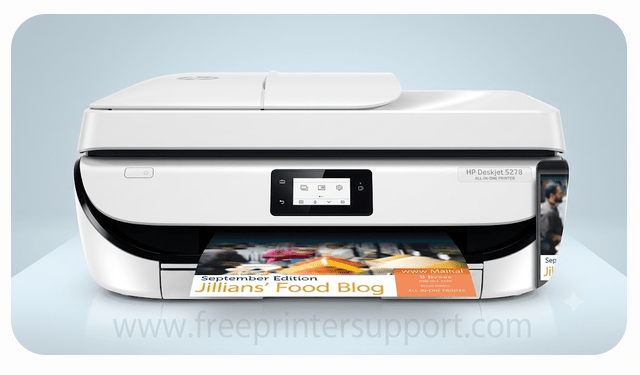
HP DeskJet 5278 is a printer from ink advantage series. It is an all-in-one colored printer with wireless connectivity. These features, such as Wi‑Fi, Automatic Document Feeder (ADF), scanning, and copying make the HP DeskJet 5278 a powerful and modern all‑in‑one printer.
This printer supports all major and latest operating systems like Windows 11, 10, 8, 8.1, 7, Linux, Mac, Android, and iOS (iPhone). To use this printer with your mobile phone, you need to install the official HP printer app. To use it with your computer, you must install the latest HP DeskJet 5278 printer driver. The drivers are provided in the driver CD that came in the box with your printer. If you do not have the driver CD, or if the CD is damaged, you can download the latest drivers from the download section below.
Advertisement
After downloading, you must install the driver correctly by following the instructions given in the How‑To section below. First, download the correct driver for the HP deskJet 5278 from the links provided in the download section. Then follow the steps below one by one to complete the installation.
Download HP DeskJet 5278 Correct Driver
To download the printer drivers, click on the download link according to your operating system version. For example, if your operating system is Windows 10 64‑bit, then click the download link shown next to “Windows 10 64‑bit”. If you do not know which operating system you are using, you can find this information by opening “My Computer” or “This PC” and checking the system properties. There you can see your Windows version and whether it is 32‑bit or 64‑bit.
Driver download for Windows
Supported OS: Windows 11, 10, 8, 8.1, 7, Vista, XP (32bit / 64bit), Server 2000 to 2026.
- Full feature driver for Windows 11, 10, 8, 8.1, 7, Vista, XP, Server (32/64bit) : Download (Full Feature)
- Basic driver for Windows All Editions: Download 32bit / Download 64bit (Basic Driver)
- Firmware download for Windows All Editions: Download (Firmware)
Driver download for Mac
Supported OS: macOS 10.x, 11.x, 12.x, 13.x, 14.x, 15.x, 26.x Tahoe
- Universal driver for macOS 10.x, 11.x, 12.x, 13.x, 14.x, 15.x, 26.x Tahoe: Download (Universal)
- Firmware download for macOS All Editions: Download (Firmware)
Driver download for Linux
Supported OS: Linux and Ubuntu (32bit / 64bit)
- Universal driver for Linux all editions: Download (Universal)
OR
You may download the same drivers from the HP’s official website.
How to Install HP DeskJet 5278 Printer Driver
If you have downloaded the correct driver, then half of the work is already done. To install the driver correctly, simply follow the step-by-step instructions below. These instructions were created while I was installing this printer on my own computer, and I am sharing the same process with you. Follow each step carefully, and you will be able to install the printer successfully without any difficulty.
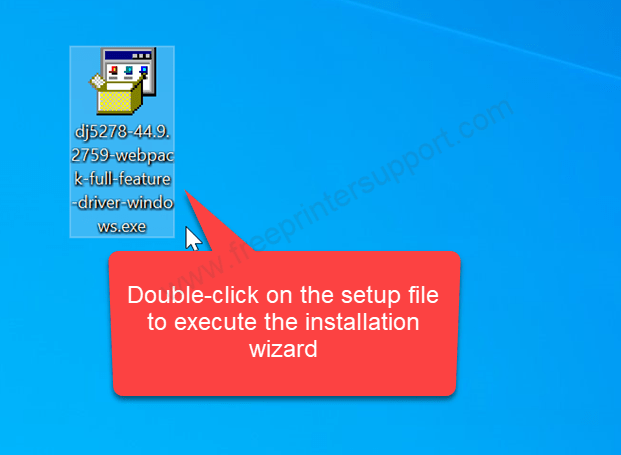
Step 1: After download the driver from the above given download section, you just need to double-click on the “dj5278-44.9.2759-webpack-full-feature-driver-windows.exe” to execute automatic installation wizard.

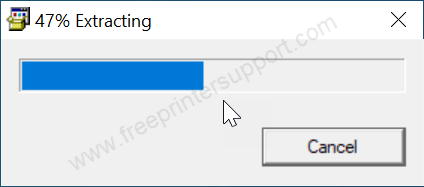
Step 2: Please wait while expecting the drivers.

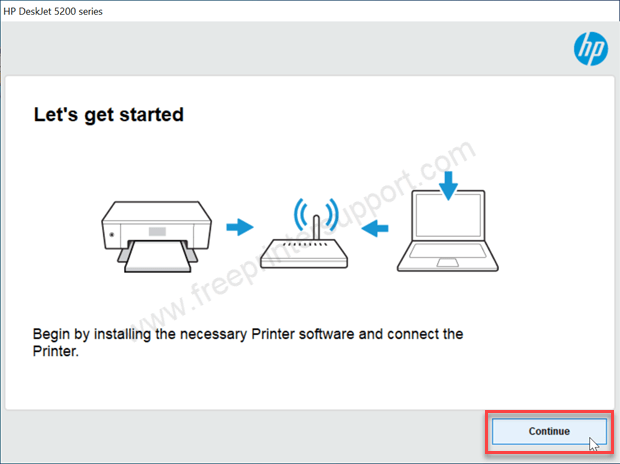
Step 3: It is saying, if you are start installing this printer you just need to connect the printer to your router.

Step 4: Please click on Yes to continue.

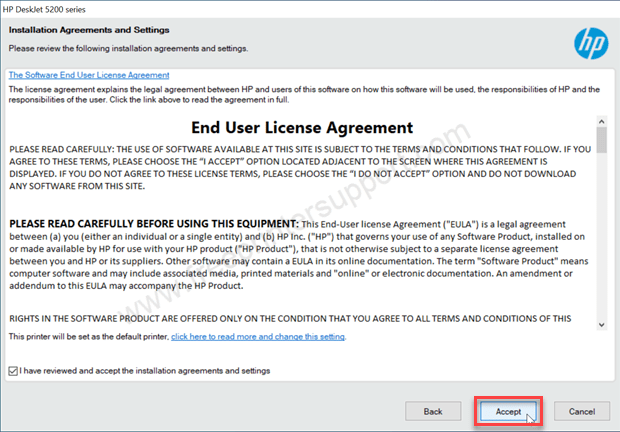
Step 5: Click on accept to agree the term and conditions.

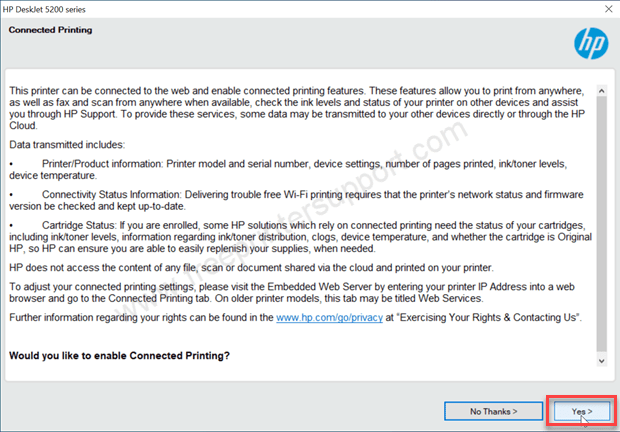
Step 6: Please click on Yes to allow this software to printer connectivity.
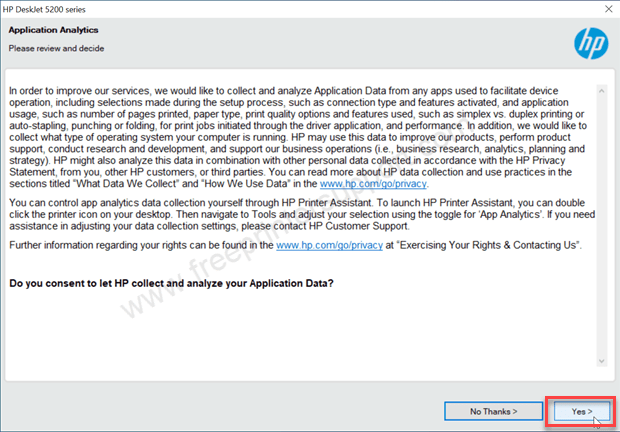
Step 7: Please opt the Yes or No thank option if you would like share software analytics data to HP.
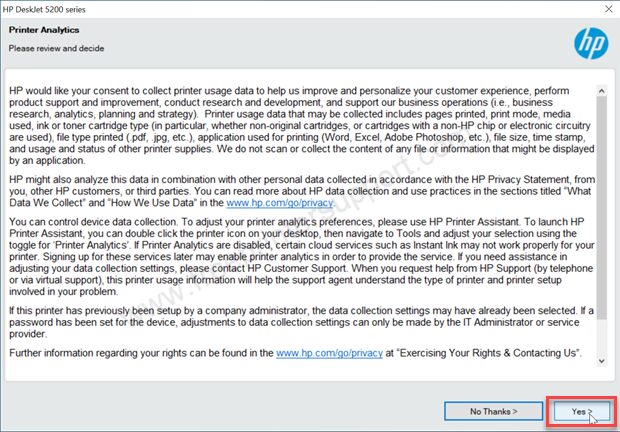
Step 8: Please click on yes to allow to share software data to HP for error fixing.
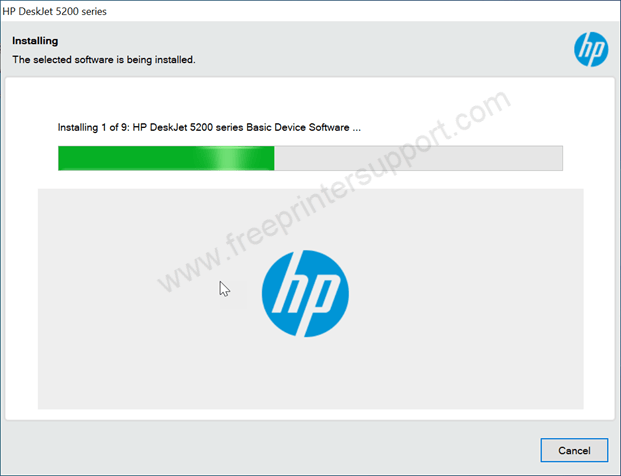
Step 9: It is now installing the drivers, please wait for that.

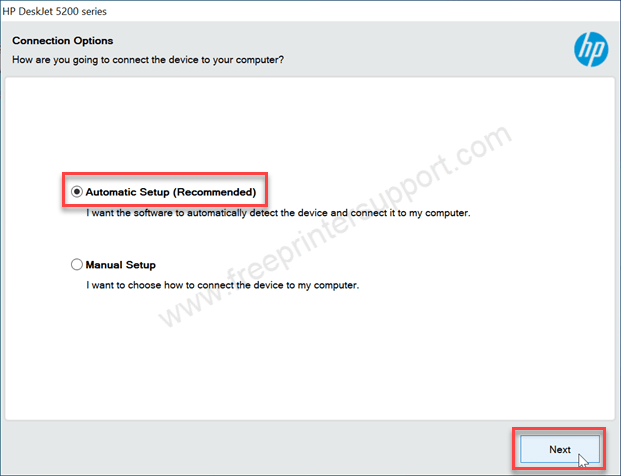
Step 10: Please choose “Automatic Setup” which is recommended and then click on Next.
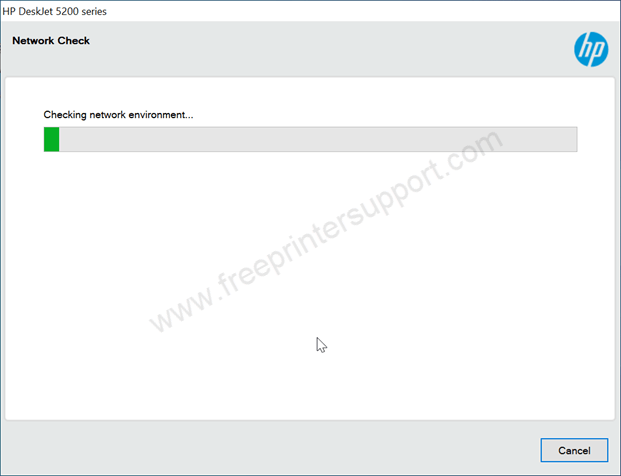
Step 11: It is not searching for the network for the the printer connectivity. Please make sure the printer is turned ON and connected to the router. If you are connecting to USB, please make sure you are connecting the USB cable to back of the computer – not in front ports.
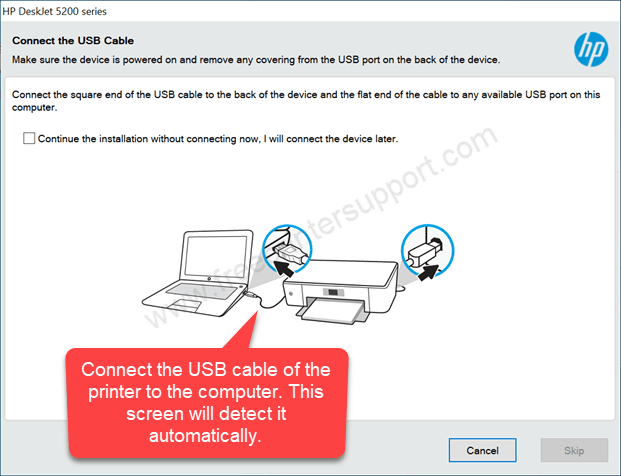
Step 12: Now, please connect the USB cable of the printer to the computer. This screen will auto-detect the printer. After that click on Next.
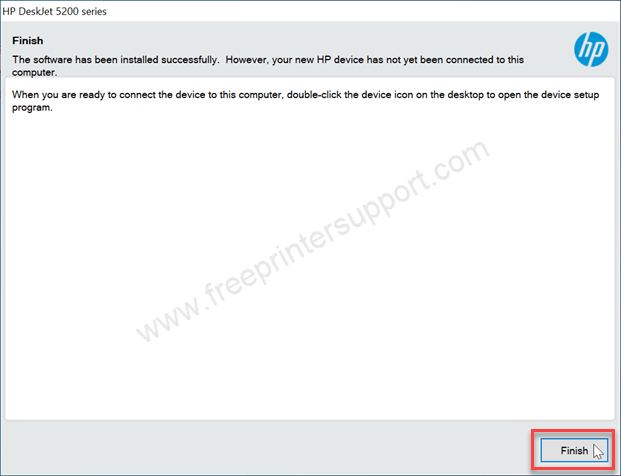
Step 13: The HP Deskjet 5278 printer has been installed successfully. Please click on finish to complete the installation process.
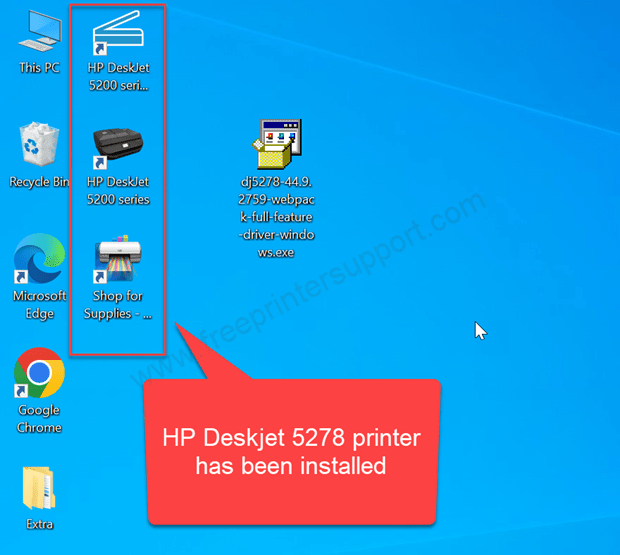
Step 14: The four new icons of HP has been created. It means the printer has been installed properly.

Check driver installation and print a test page
After installed the printer, go to the printers page – click on start menu >> click on settings >> click on devices >> click on printers & scanners page. There click on your printer and then click on “Print a test page”. After giving the test print command, your printer should print the default test print.
Which operating system versions does HP DeskJet 5278 supports
This printer support Windows 11, 10, 8, 8.1, 7, Vista, XP (32bit / 64bit), Server 2000 to 2026, Linux, Ubuntu, Mac 10.x, 11.x, 12.x, 13.x, 14.x, macOS 15 Sequoia, 26.x Tahoe Operating Systems.
Specifications & Features
HP desktop 5278 printer is an all-in-one printer that can print, scan and copy wirelessly. This is an inkjet printer. The print speed of this printer is 20 pages per minute with a quality of 1200 DPI rendered DPI. The copy speed of this printer is 6 CPM, which is average. It uses two cartridges, one black (HP 680 Black) and one tri-color cartridge (HP 680 Tri-color).
It has a flatbed scanner with ADF. The ADF page holding capacity is 35 pages at a time. It has a scanner with ADF. It doesn’t mean it is an auto duplex. It is a manual duplex printer. So if you want to print or copy both sides of the paper, then you will have to flip it manually.
To print faster and handle multiple commands, it has a 1 GHz processor and 64 MB RAM. The dimensions of this printer is 428 mm in width, 332 in depth, and 200 mm in height. The total weight of this printer is 4.8 kg. It comes with a one year warranty.
If we talk about the main feature of this printer, it is an all-in-one printer that can print, copy, and scan, and also do fax, but only from mobile. And it has an ADF feature in this category which is very rare. The third is it has a built-in Wi-Fi that can support mobile printing as well. And it is suitable for home printing. It can hold 60 pages in its input tray. This printer comes with the two cartridges, one black and one tri-color printer. So here are the main features of this printer.
In this guide, I have explained how and where to download the driver of HP DeskJet 5278 printer for Windows, Linux and Mac OS. And I have explained the step-by-step method to install this printer on a Windows computer. And I have also provided all the specifications of this printer. Also mentioned which operating system this printer supports. So, here is all about this printer from my side. Thank you.