


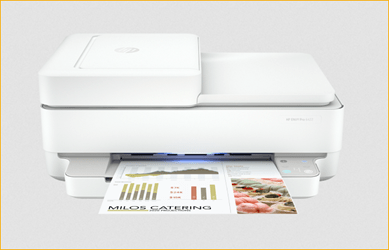
HP ENVY Pro 6422 is an all-in-one Wi-Fi printer that can print from laptops and mobiles smoothly. It has lots of features like: ADF, Auto-duplex, Mobile printing and mobile fax etc. To use all the features through your computer you need to install its driver on a computer.
If you are looking for its driver, you can download the driver from the download section given below. I have given all the download links according to the operating system version there. After download, you must know the proper method to install this printer on a computer. That’s why I have created a step-by-step installation guide that will help you to install this printer on a Windows based computer properly.
Advertisement
Download HP ENVY Pro 6422 Printer Driver
To download the driver, you need to determine the operating system of your computer and then click on the download link given below accordingly.
Windows
Supported OS: Windows 11, 10, 8, 8.1, 7, Vista, XP (32bit / 64bit), Server 2000 to 2025
Full feature driver for Windows: Download – 195.3 MB | Recommended
Scanner Universal Driver for Windows: Download – 411 MB
Firmware download for Windows: Download – 47.7 MB
Mac
Supported OS: Mac 10.x, 11.x, 12.x, 13.x, 14.x, macOS 15 Sequoia, 26.x Tahoe Operating Systems.
App download for Mac: Download this App – 589 MB
HP Easy Start driver for Mac: Download – 10.8 MB
Linux
Supported OS: Linux & Ubuntu REM/DEB (32bit / 64bit)
Universal driver for Linux: Download – 25.9 MB
OR
Alternatively, you may download the same driver from HP’s official website.
How to Install HP ENVY Pro 6422 Driver
In order to properly install this printer on your computer you will have to follow the following steps that I have prepared while installing this printer on my computer I am sharing these steps. Please follow the steps carefully.
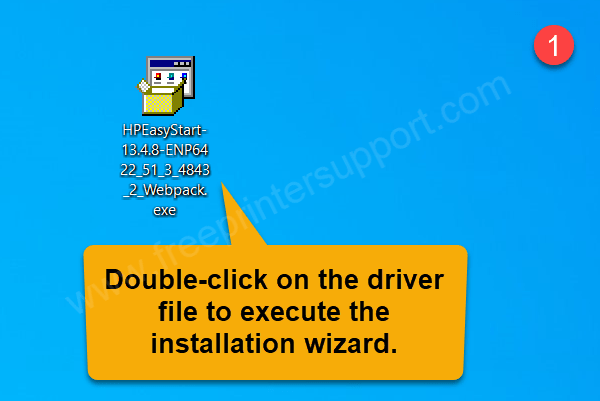
Step 1: After download the driver, double-click on the driver file to execute the installation wizard.

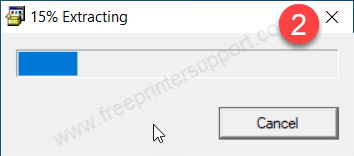
Step 2: Please wait while extracting the driver files.

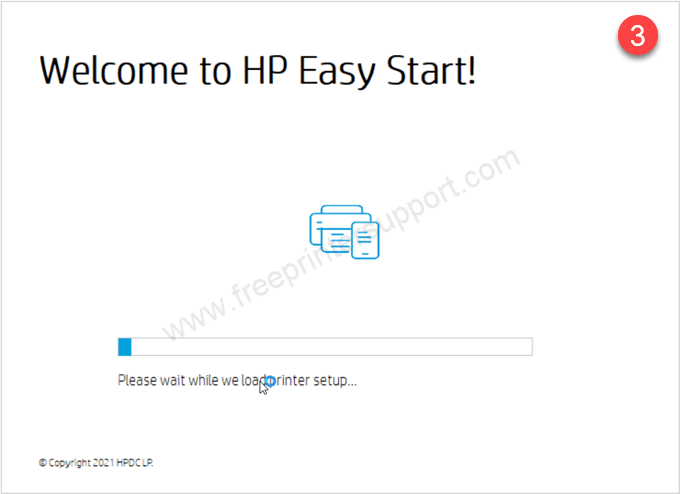
Step 3: It is now preparing the installation wizard, so please wait for that.

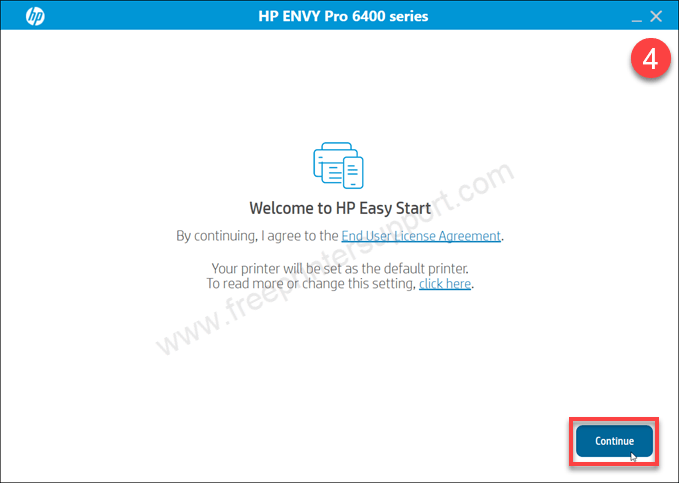
Step 4: Click on continue.

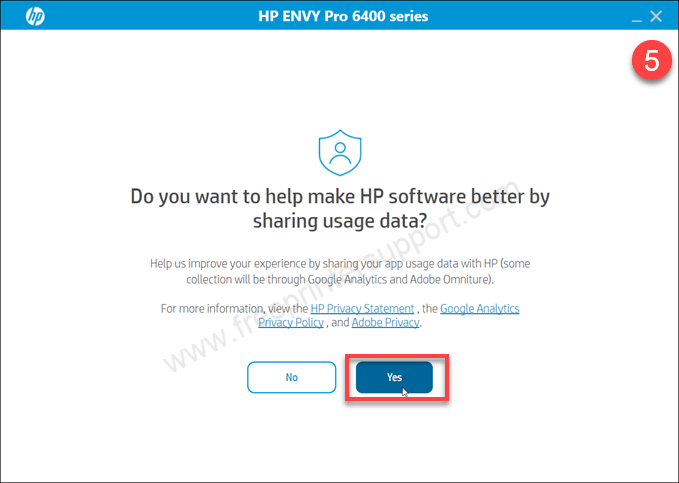
Step 5: Click on Yes
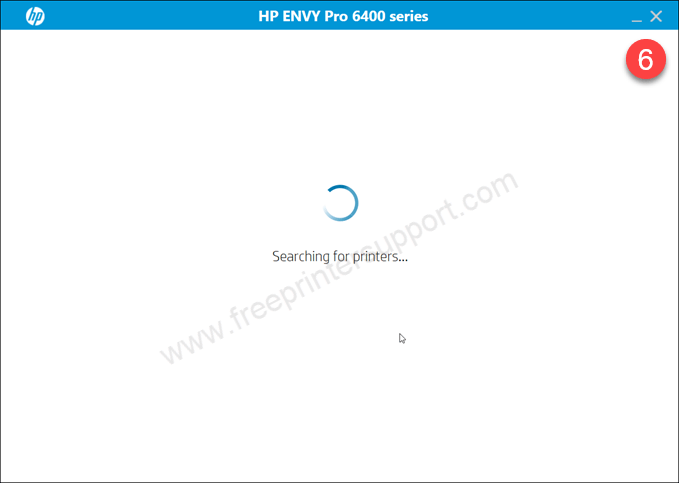
Step 6: It is now searching for the printer, so please make sure the printer is connected to the computer through USB cable or if you would WiFi setup then make sure the printer should be connected to the router through WiFi and then this installer will detect your printer connectivity here.
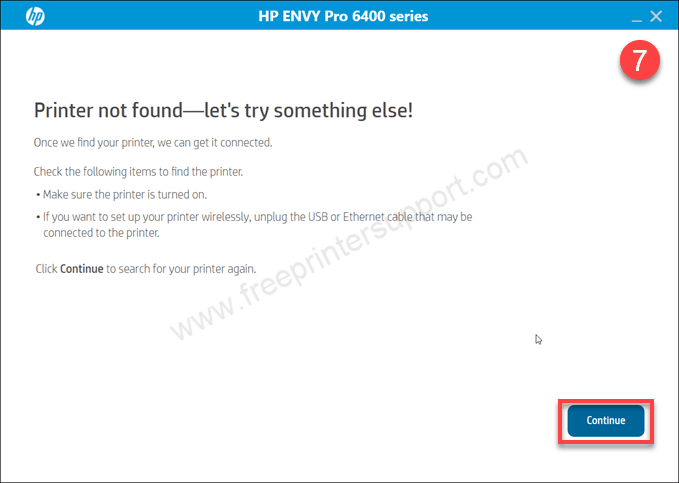
Step 7: If you get this message then click on continue to get more specific connectivity options.
Step 8: Choose your preferred connection type and then click on continue.
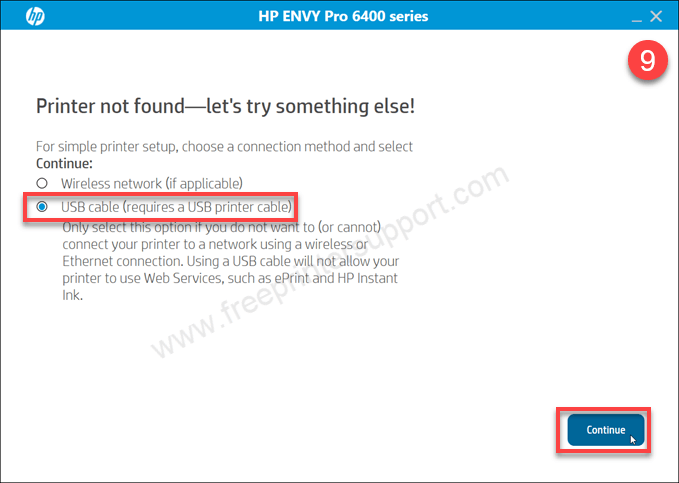
Step 9: Now please connect the USB cable of your printer to the computer and make sure it is turned on. The screen will detect your printer connection automatically and then you will have to click on continue and then finish to complete the installation process.
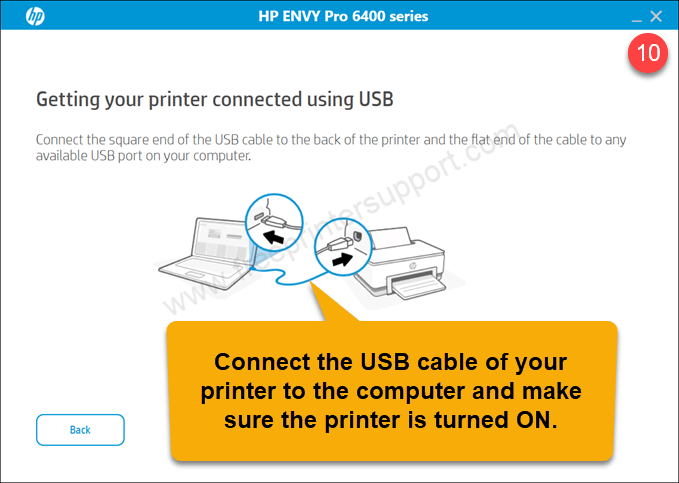
So this is how you can install this printer on your computer properly. I have installed this winter on my Windows 10 64 Bit computer what you can try the same steps on Windows 11 and Windows 8 as well.
Specifications:
The HP ENVY Pro 6422 is a color wireless printer. It is a suitable printer for home and small to medium size offices. Using this printer you can do most of the tasks like print copy scan Fax etc. This printer uses inkjet technology to print. This can print borderless so that you can get professional photo prints.
The print speed of this printer is 10 ppm in black and 7 ppm in color. If you’re using draft mode then you can get speeds up to 20 ppm in black and 17 ppm in color with 1200 x 1200 DPI in black and 4800 x 1200 DPI print resolution, which is very good. The copy speed of this printer is around 8 CPM in black and 4 CPM in color. The scan speed of this printer up to 8 IPM.
It has one more very useful feature which is auto-duplex. You can print and copy with the auto-duplex. This feature helps you to print both sides of the page without flipping the page manually, it will do automatically. If you want to save time, then you can use its ADF feature – Automatic Document Feeder which is a hardware situated on top of the printer to get the pages for print, scan and copy. The ADF can hold or handle 35 pages at once.
It has 4 major connectivity options: USB, Ethernet, Bluetooth and Dual-band WiFi. All the connections are very stable. For printing from mobiles, there is a dedicated app like Apple AirPrint, HP Easy Start App for those users. For computer users, I have already given the driver in the download section above and installation guide as well for the proper installation.