
HP Laserjet 1010 printer is a black & white laser printer. Many people have been requesting me to provide their drivers for Windows 11 and 10 OS. In this page, I am going to provide the driver download links below and also provide step-by-step instructions on how to install it on Windows 11, 10, 8, 8.1, 7, Vista, XP and all the server editions. To download the drivers, go to the download section and click on the download link below according to your operating system. How to install guide & video also given beneath the download section.
- HP LaserJet 1010 Driver Download Link.
- How to install hp laserjet 1010 printer driver (Included Video Tutorial)
HP LaserJet 1010 Driver Download

In order to download the driver, first you need to know the exact version of the operating system installed on your computer. Then download the same OS driver from the following list.

Advertisement
Download Print Driver for HP LaserJet 1010
for Windows 11, 10, 8, 7, Vista, XP, Server 2000 to 2016 32-bit / 64-bit, Linux, and Mac OS X.
- First, you are required to determine your operating system version.
- From there, go to the download section below and click on download to download the HP LaserJet 1010 (BOISB 0207-00) driver from there.
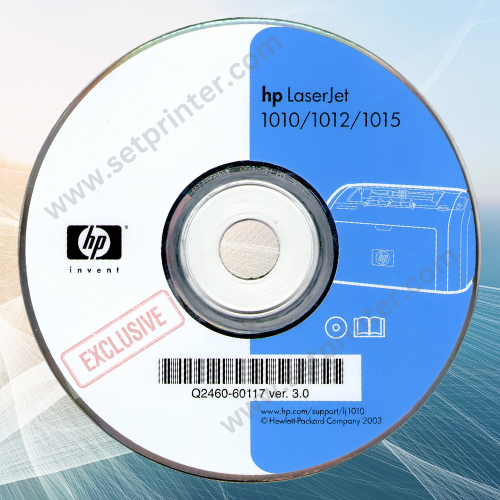

- HP LaserJet 1010 printer driver download for Windows XP (32 bit) — Download
- HP Laser Printer 1010 Driver Download for Windows Vista (32bit) — Download
- HP Laser Printer 1010 Driver Download for Windows Vista (64bit) – Download
- HP LaserJet 1010 Driver for Windows 7 32-bit – Download (Basic Driver)
- HP LaserJet 1010 Driver for Windows 7 64-bit – Download (Basic Driver)
- HP LaserJet 1010 Driver for Windows 8 32-bit – Download (Basic Driver)
- HP LaserJet 1010 Driver for Windows 8 64-bit – Download (Basic Driver)
- HP Laserjet 1010 Driver for Windows 8.1 32-bit – Download (Basic Driver)
- HP Laserjet 1010 Driver for Windows 8.1 64-bit – Download (Basic Driver)
- HP LaserJet 1010 Driver for Windows 10 32-bit – Download (Basic Driver)
- HP LaserJet 1010 Driver for Windows 10 64-bit – Download (Basic Driver)
- HP LaserJet 1010 Driver for Windows 11 64-bit – Download (Basic Driver)
Know what is the Basic Driver and how to install it. We have also created a video tutorial on how to install hp laserjet 1010 printer drivers in Windows 10, 11 manually. - HP Laserjet 1010 printer driver download for Server 2000 – Download
HP’s official website does not provide a downloadable HP LaserJet 1010 driver for Windows 7, 8, 8.1, 10, 11 operating systems. However, it doesn’t mean you can’t use this printer on these operating systems. You can easily install an HP LaserJet 1010 printer on these operating systems using its basic driver manually. Click here to watch a video tutorial on how to install hp laserjet 1010 printer’s basic driver manually.
If the above basic driver doesn’t work for you then you have to install Dot4 driver and HP universal driver. First, you need to install Dot4 EXE file and then install HP universal drivers manually. The drivers are given below, please try it once.
- Click here to download HP Dot4 drivers for Windows 32bit – Download
- Click here to download HP Dot4 drivers for Windows 64bit – Download
- Click here to download HP Universal PCL 5 driver for Windows 32bit – Download
- Click here to download HP Universal PCL 5 driver for Windows 64bit – Download
- HP 1010 Printer Driver for Linux – Download (11.1 MB)
- HP 1010 printer driver for Mac OS 10.0 to 10.15, 11.x, 12.x, 13.x – Download
OR
You can download the same drivers directly from HP Laserjet 1010 official website.
There are two types of drivers available for hp 1010 printer, basic and full feature driver. Basic drivers have drivers only (no software included). The full feature driver package has its software along with the drivers. Sometimes, the full feature driver is unable to install due to many reasons. In this case, you can use its basic driver, it will install easily without any hassle.
How to Install HP LaserJet 1010 in Windows
Installing printer drivers correctly is equally essential as downloading the appropriate drivers from a trusted source. Therefore, I am going to provide below the detailed installation guide for the full feature and basic driver (INF driver).
In this section, I have explained the complete installation process for installing the HP LaserJet 1010 printer driver on Windows. MacOS and Linux operating systems.
1) Full Feature Driver
Follow the installation steps given below to install the full feature HP LaserJet 1010 printer driver on your Windows operating system. You can use these installation steps for all the supported versions of the Windows operating system.
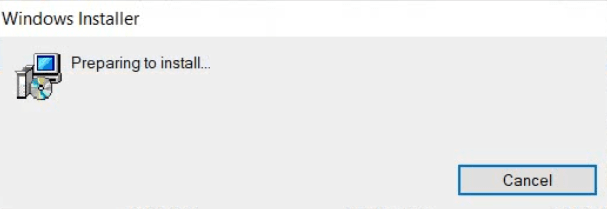
- Run the full feature driver setup file, and wait for the Windows Installer to prepare your computer for the driver installation.
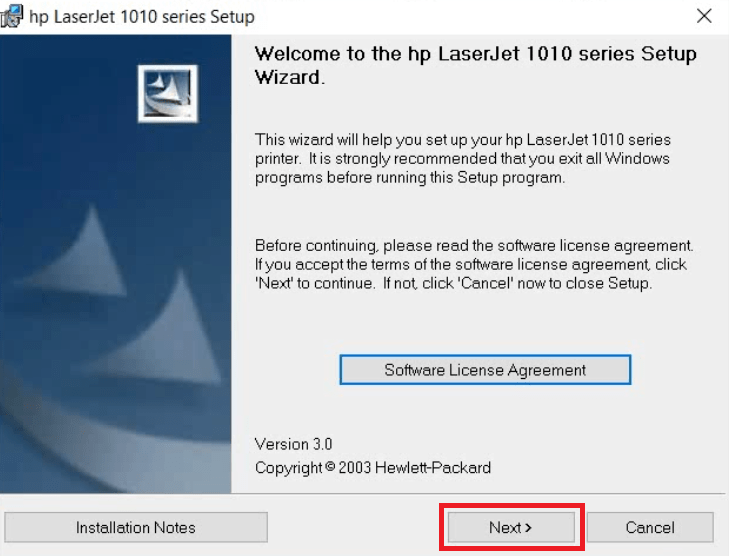
- In the Welcome screen, click on the ‘Next’ button to agree with the terms of the Software License Agreement.
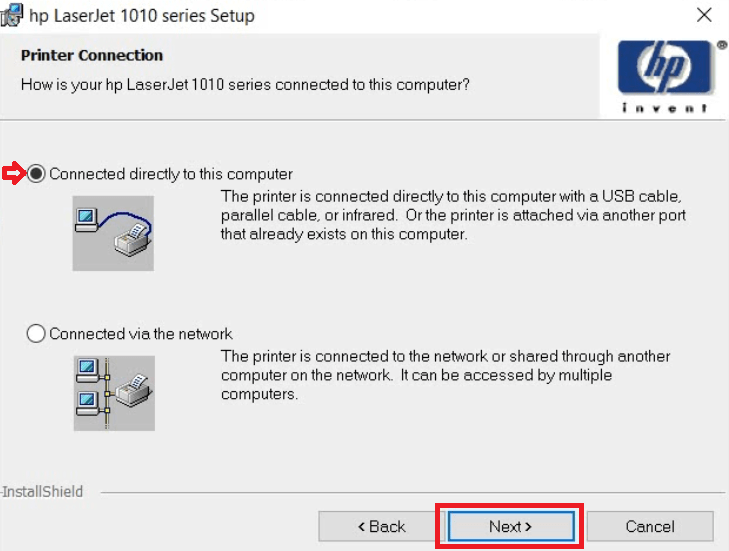
- In the Printer Connection screen, select the ‘Connected directly to this computer’ option, then click on the ‘Next’ button. Make sure that your printer is switched on and connected to your computer via a USB cable. If your printer is connected via the network, then select that option and proceed accordingly.
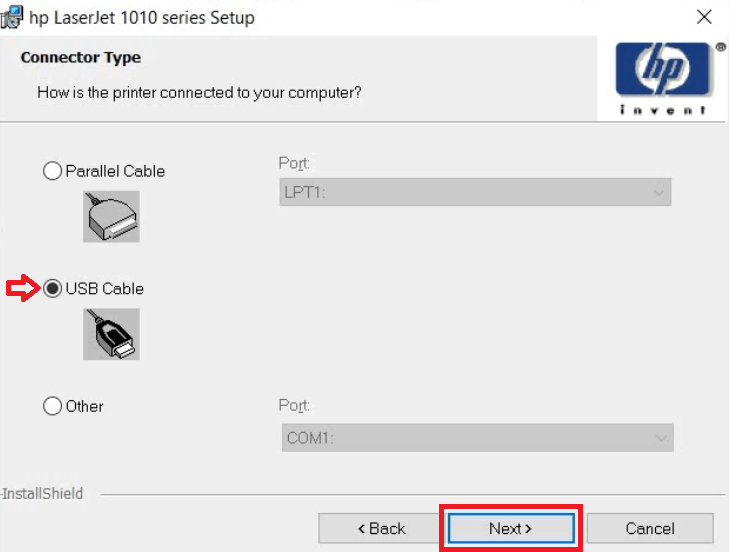
- In the Connection Type screen, select the ‘USB Cable’ option, then click on the ‘Next’ button.
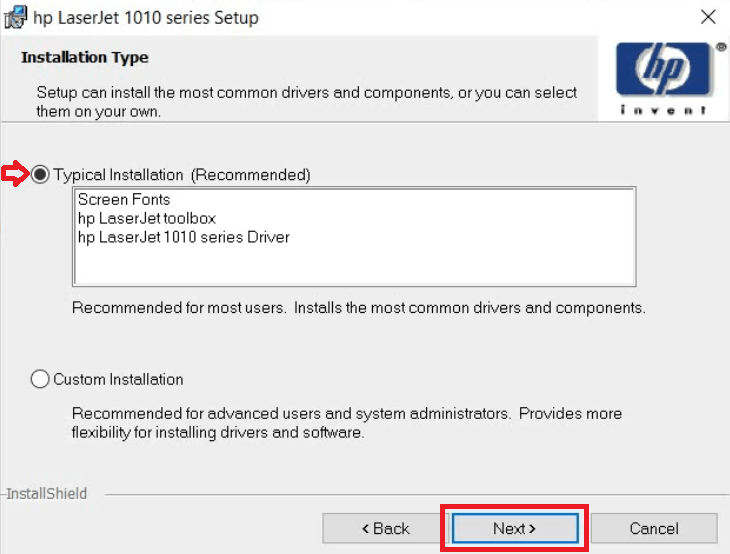
- In the Installation Type screen, select the ‘Typical Installation’ option, then click on the ‘Next’ button.
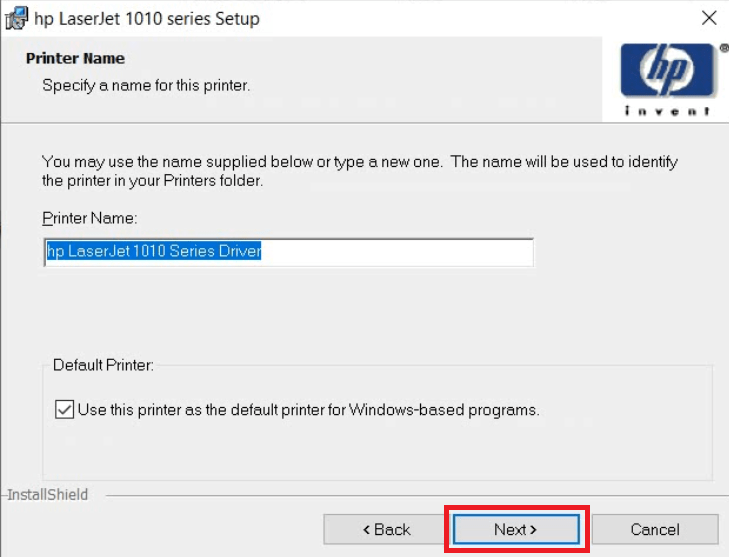
- Make sure that the printer’s name is to your liking, otherwise, you can change it to your preferred name. Finally, click on the ‘Next’ button.
- In the Printer Sharing screen, select the ‘Not Shared’ option, then click on the ‘Next’ button.
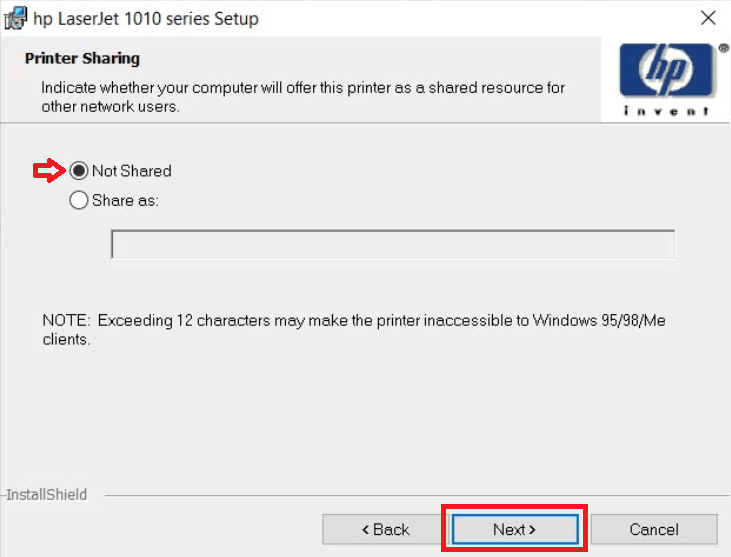
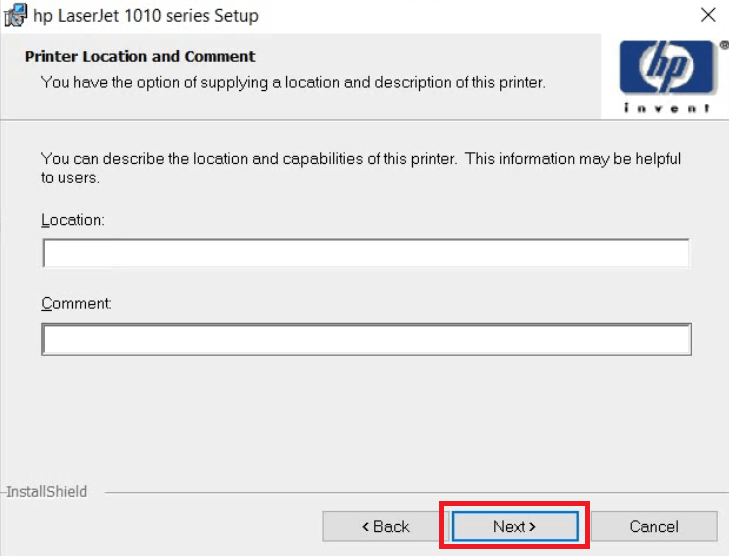
- Click on the ‘Next’ button to proceed.
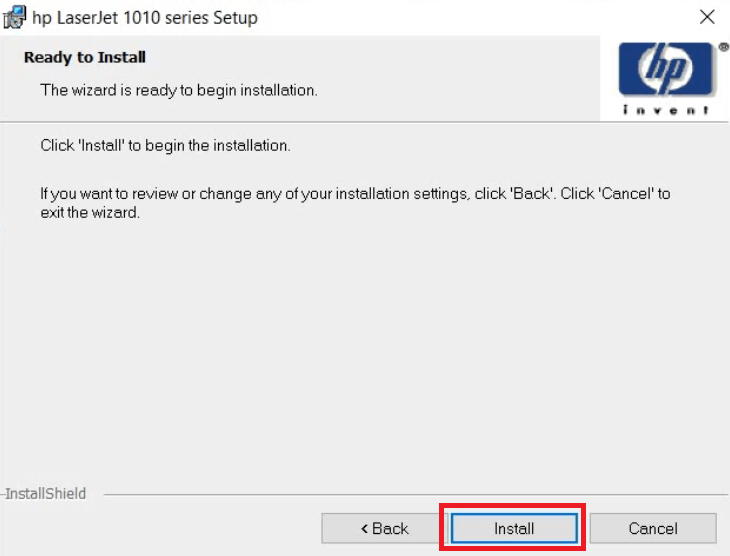
- In the Ready to Install screen, click on the ‘Install’ button to start the driver installation process.
- Wait for the installation of the printer driver to complete, then follow the onscreen instructions to complete the driver installation process.
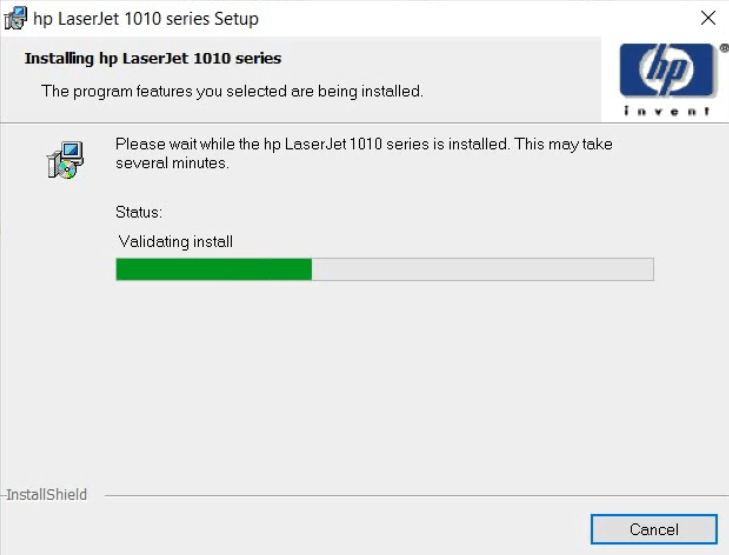


That’s it, you have successfully installed the HP LaserJet 1010 driver package on your computer.
2) Basic Driver
If you want to install your printer by using its HP LaserJet 1010 basic driver, then follow the installation steps given below. Although the installation process described below is for the Windows 10 OS, but you can follow these steps, with necessary variations, for all the supported versions of the Windows operating system.
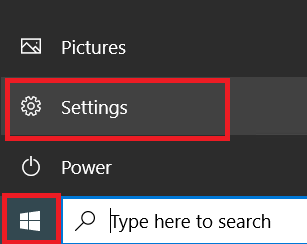
- Click on the ‘Start’ button, in the Menu, select the ‘Settings’ option.
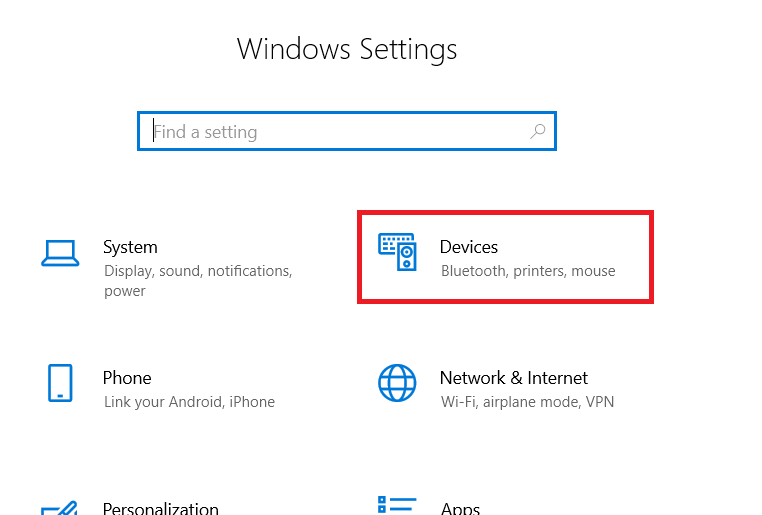
- In the Windows Settings page, select the ‘Devices’ option.
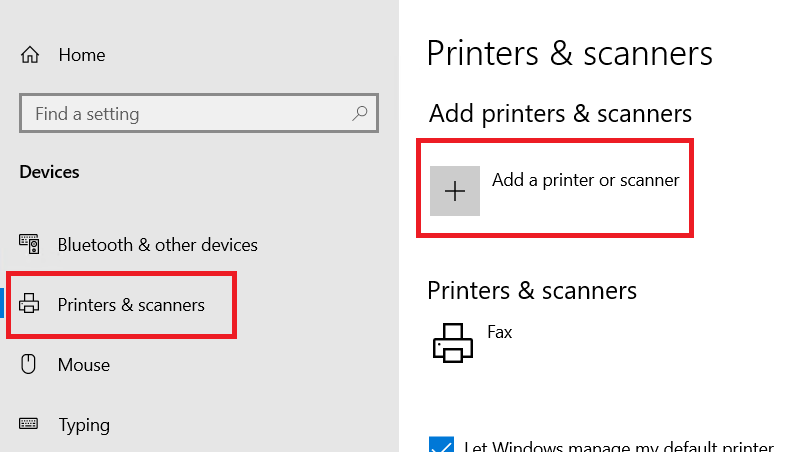
- Select the ‘Printers & scanners’ option under ‘Devices’ section, then click on the ‘Add a printer or scanner’ option.
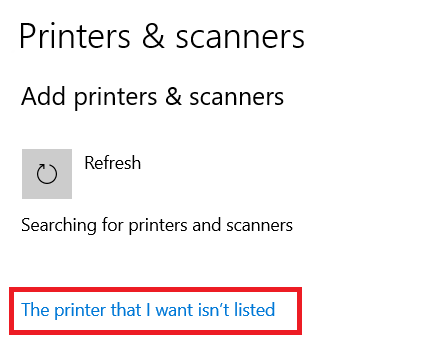
- Wait for the ‘The printer that I want isn’t listed’ link to appear, then click on it.
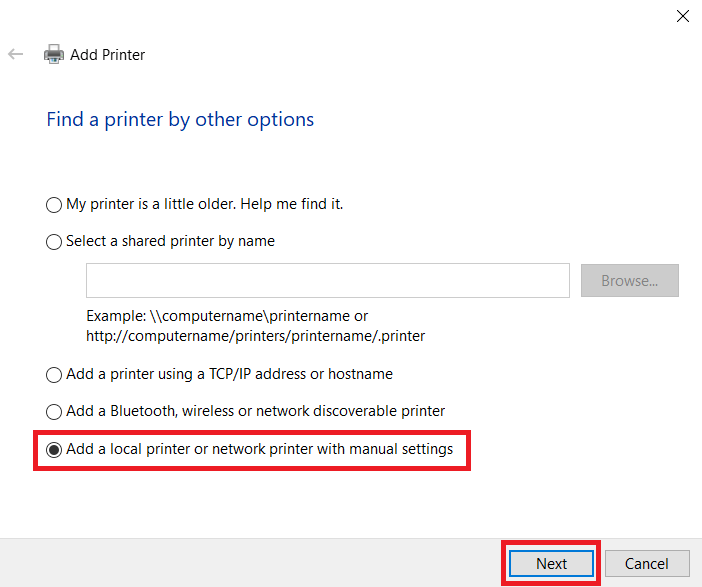
- In the Add Printer window, select the ‘Add a local printer or network printer with manual settings’ option, then click on the ‘Next’ button.
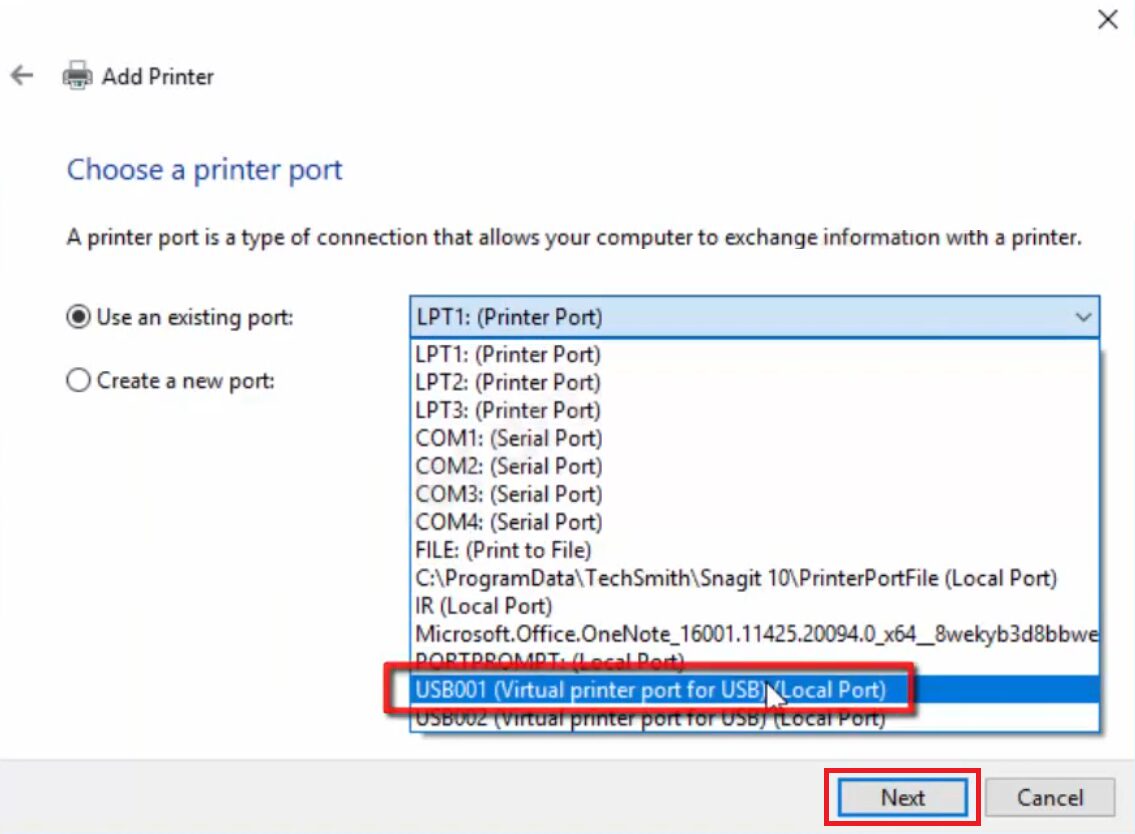
- In the Choose a printer port screen, select the ‘USB’ port option, then click on the ‘Next’ button.
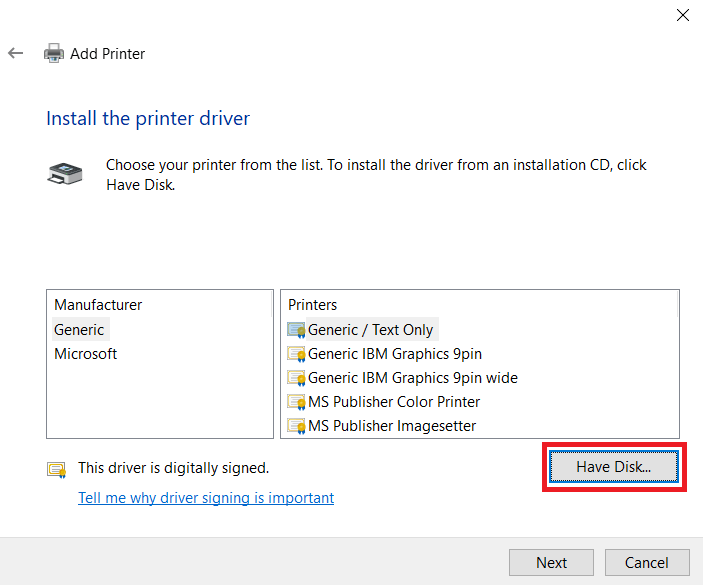
- Click on the ‘Have Disk’ button.
- Click on the ‘Browse’ button.
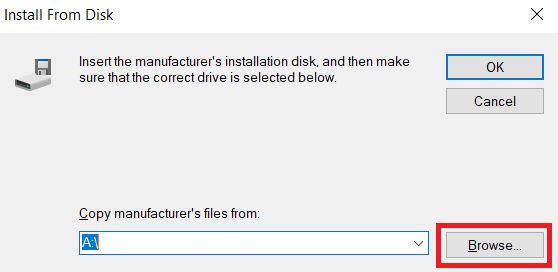
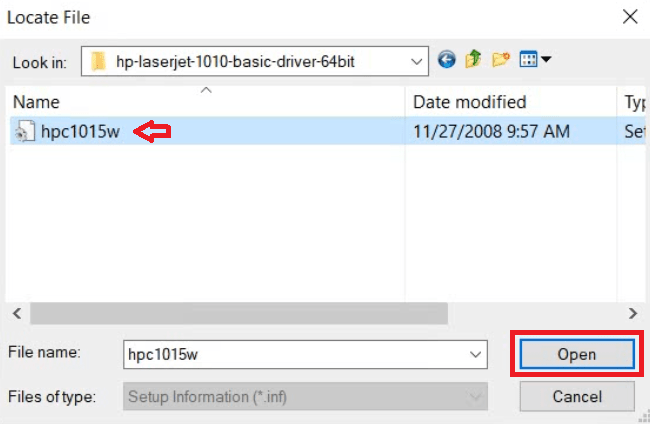
- In the Browse window, go to the driver folder, select the ‘hpc1015w’ inf file, then click on the ‘Open’ button.
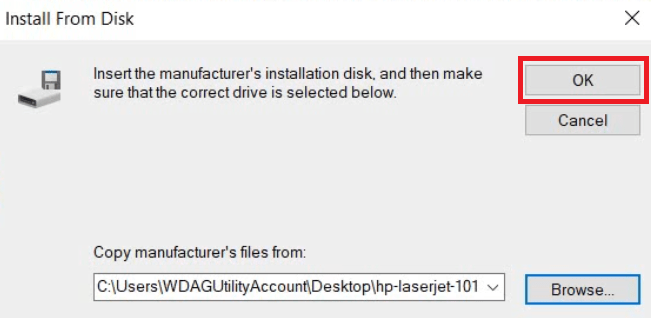
- Verify the location of the driver file, then click on the ‘OK’ button.
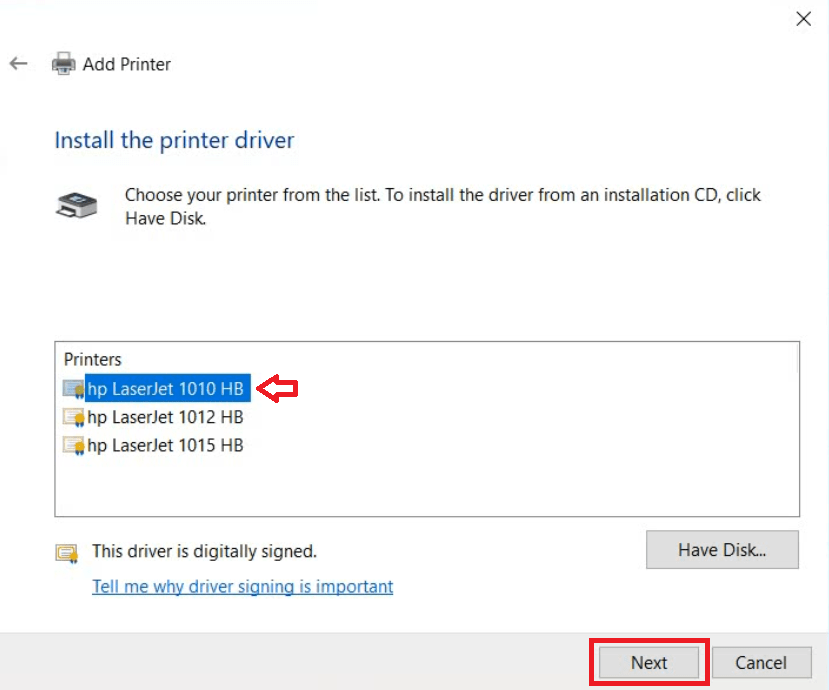
- In the Printers list, select the ‘hp LaserJet 1010 HB’ option, then click on the ‘Next’ button.
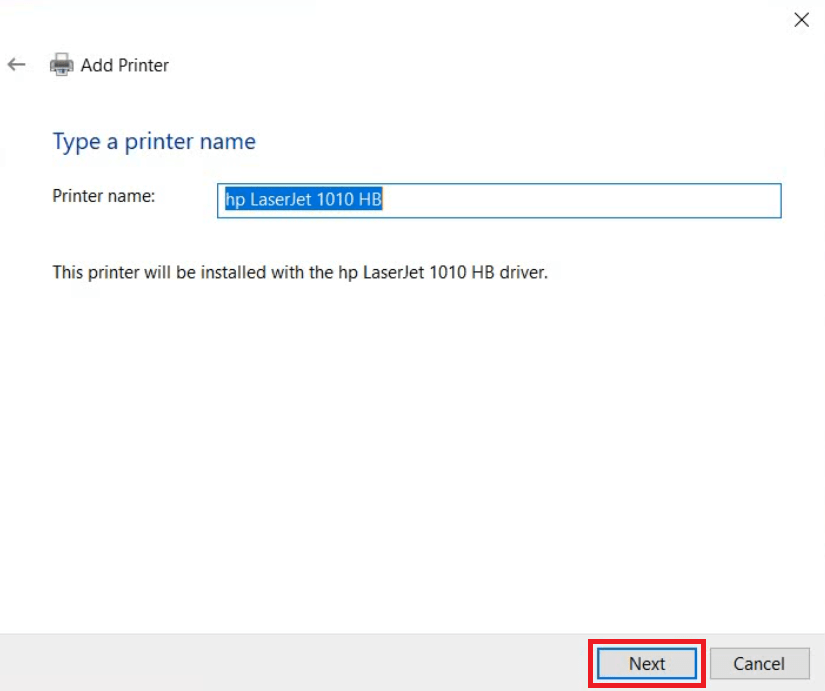
- If you want, then you can change the name of your printer, otherwise, proceed with the name displayed. Finally, click on the ‘Next’ button.
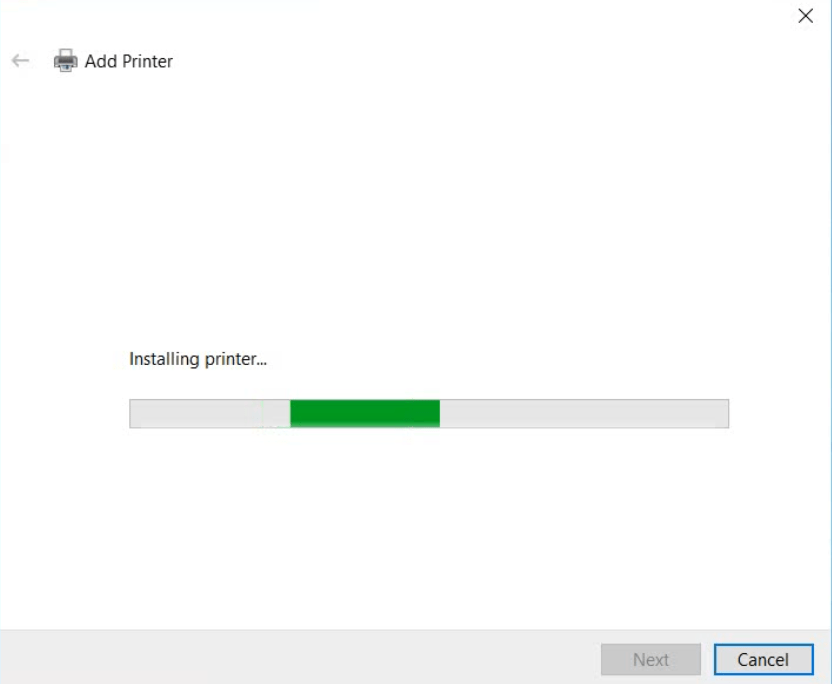
- Wait for the installation of the driver to complete.
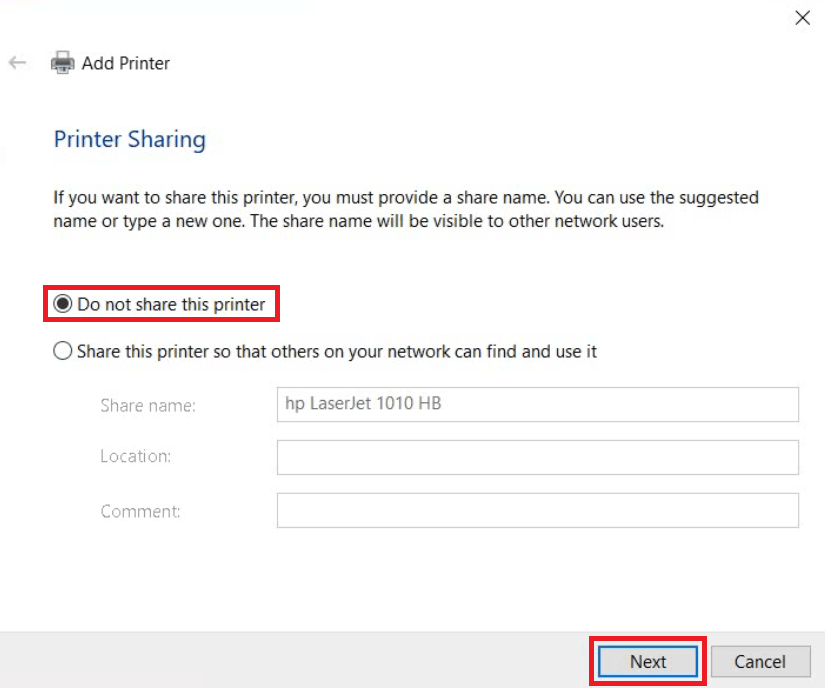
- Select the ‘Do not share this printer’ option. In case, you want to use this printer over a network, then select that option and provide the relevant details. Finally, click on the ‘Next’ button.
- Click on the ‘Finish’ button to close the Add Printer app.
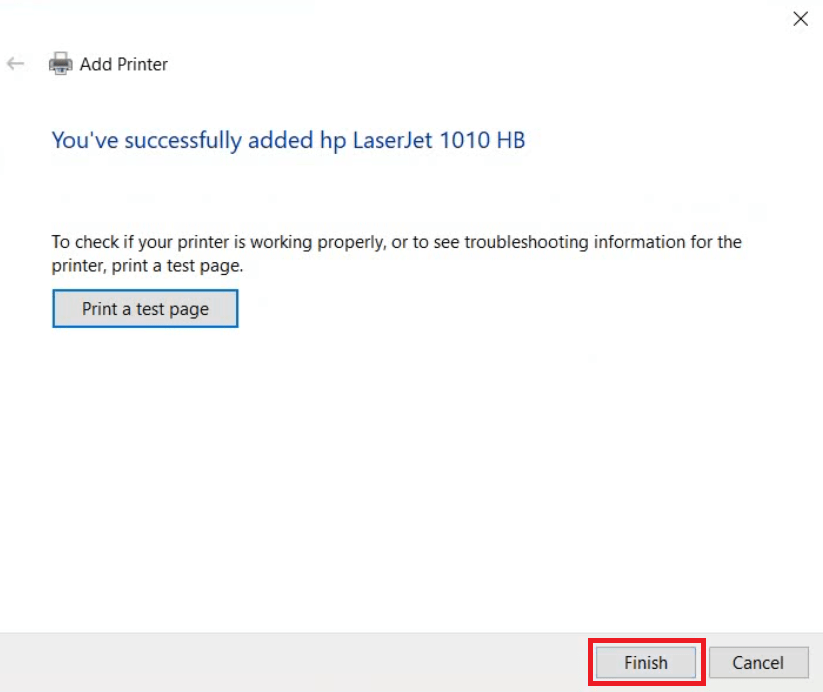


That’s it, you have successfully installed the HP LaserJet 1010 INF driver on your computer.
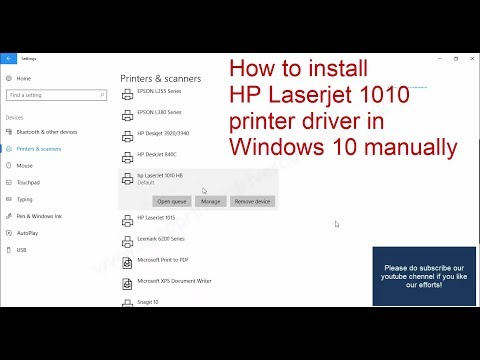
If you have any doubts then watch this video tutorial where I have explained how to install HP Laserjet 1010 printer manually.
How to Install HP LaserJet 1010 Printer on MacOS
In this installation guide, I will describe the installation steps for installing the HP LaserJet 1010 printer driver on MacOS. You can follow these steps for all the supported versions of the MacOS operating systems.
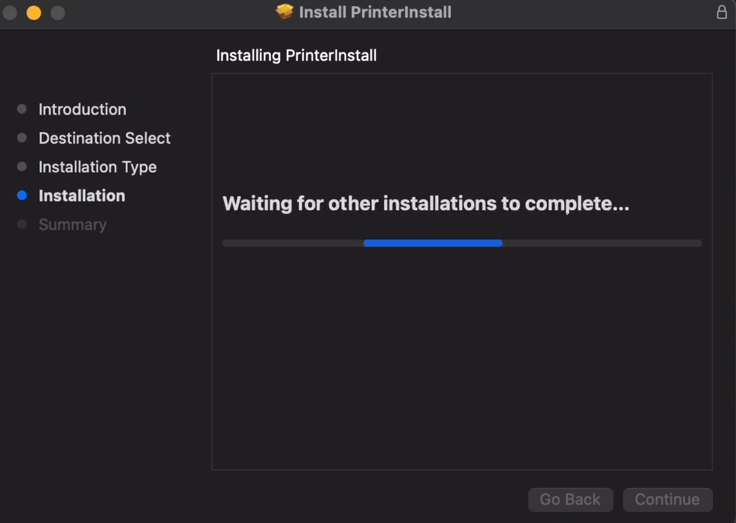
- Run the driver package file and follow the onscreen instructions to proceed with the installation process and wait for the driver to install on your computer.
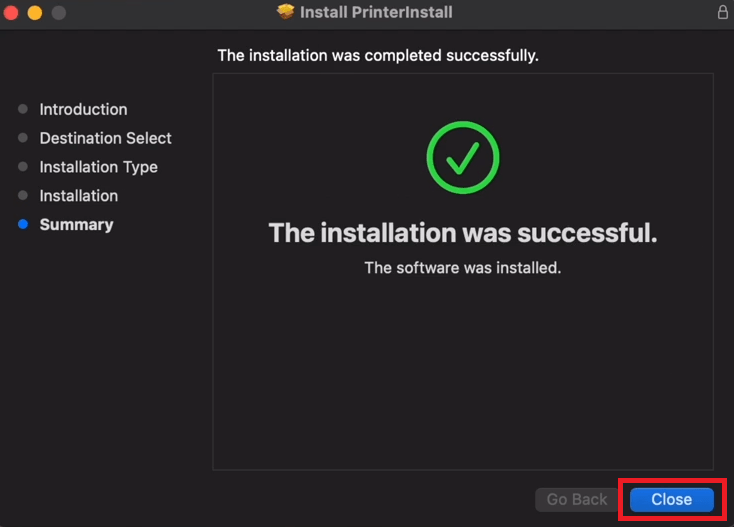
- When you see the message that installation was successful, then click on the ‘Close’ button.
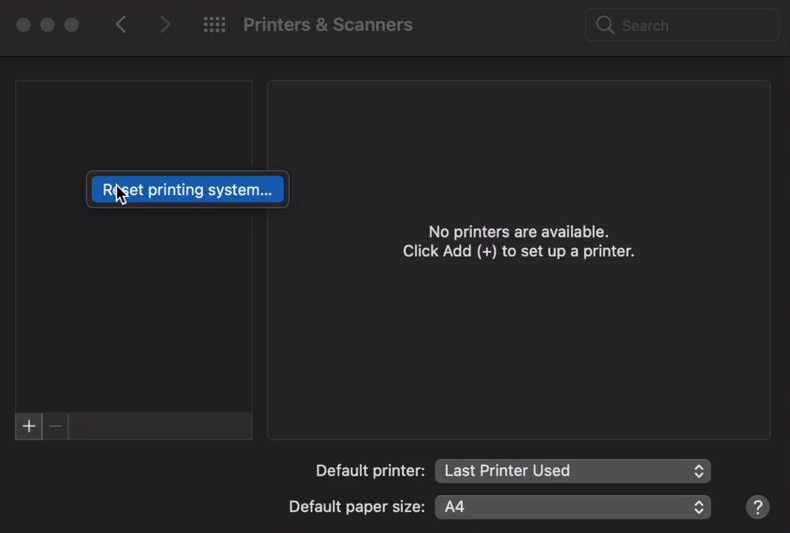
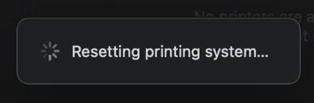
- Open the Printers & Scanners app, right click in the blank space on the left pane, then click on the ‘Reset printing system’ option.
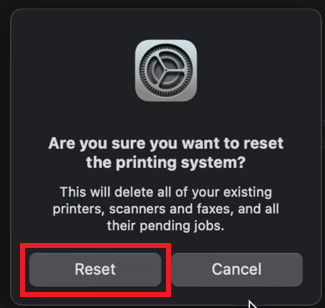
- You will be asked to confirm your choice of resetting the printing system, click on the ‘Reset’ button.
- Wait for the resetting of the printer system to complete.
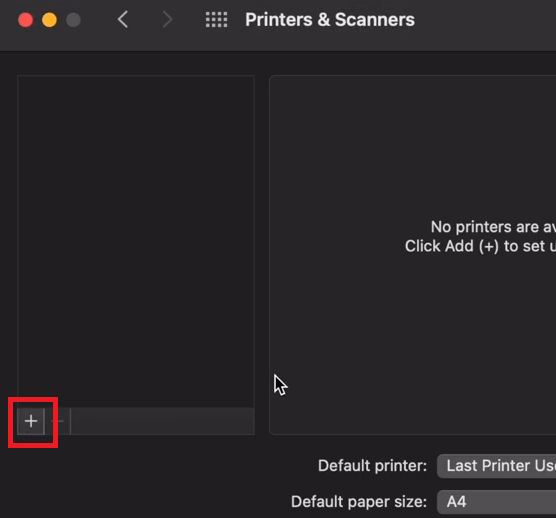
- Go to the Printers & Scanners app, then click on the ‘+’ sign to add a new printer.
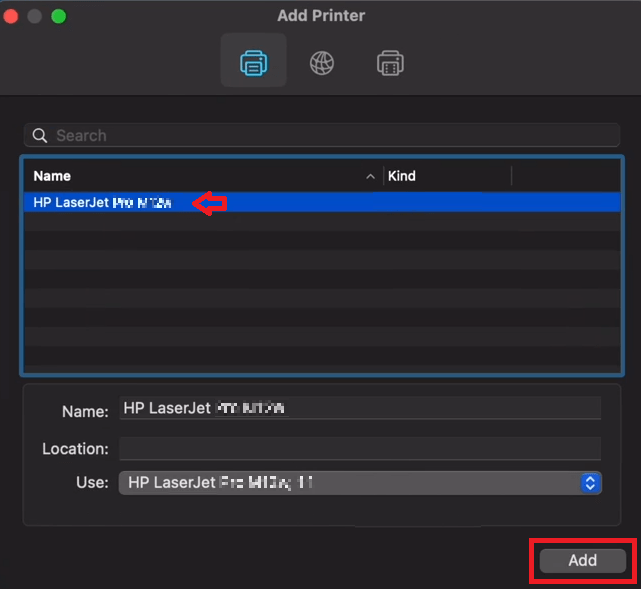
- Since you have already installed the printer driver, you will see your ‘HP LaserJet 1010’ printer listed and its driver preselected. Select the ‘HP LaserJet 1010’ printer, then click on the ‘Add’ button.
- Now you will find ‘HP LaserJet 1010’ printer added to your printers list in the Printers & Scanners app.
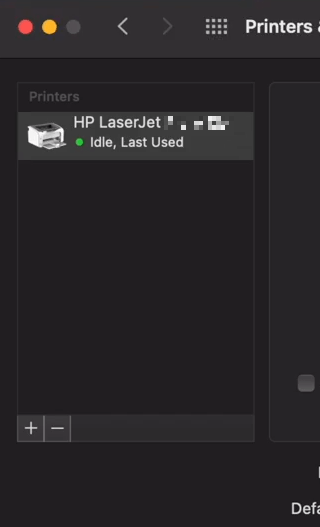


That’s it, you have successfully installed the HP LaserJet 1010 printer driver on your MacOS and your primer is ready for use.
How to Install HP LaserJet 1010 on Linux/Ubuntu
When you connect your HP LaserJet 1010 printer with your Ubuntu computer, then Ubuntu automatically installs the default printer drivers of your printer. However, sometimes, those drivers are outdated or inappropriate for your HP LaserJet 1010 printer. Don’t worry, in the steps given below, I will describe the installation steps for the latest HP LaserJet 1010 printer drivers on Linux/Ubuntu operating system.
- Open the Terminal window, go inside the folder where you have saved the HP printer driver package file, type ‘sh hplip-3.19.6.run’, then press the ‘Enter’ key. Wait for the contents of the driver package to extract on your computer.Note: In this command, ‘hplip-3.19.6.run’ is the name of the latest version driver package file downloaded from the HP website. Here, ‘hplip’, stands for, HP Linux Printing and Imaging System, and ‘3.19.6’ is the version of the printer driver. In your case, you may have to type another name, depending on the driver version file you have downloaded.
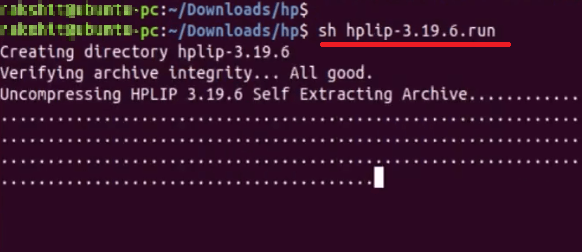
- You will be asked to select the Installation Mode, type ‘a’ for automatic installation, then press the ‘Enter’ key.

- Your Ubuntu version will be detected and displayed, if its correct, then type ‘Y’ to proceed, and press the ‘Enter’ key.

- Read the installation notes, then press the ‘Enter’ key to proceed.

- Your permission will be asked to install the hplip security packages, type ‘Y’ to agree, then press the ‘Enter’ key.

- Your permission will be asked to install the missing dependencies, type ‘Y’ to give the permission, then press the ‘Enter’ key.
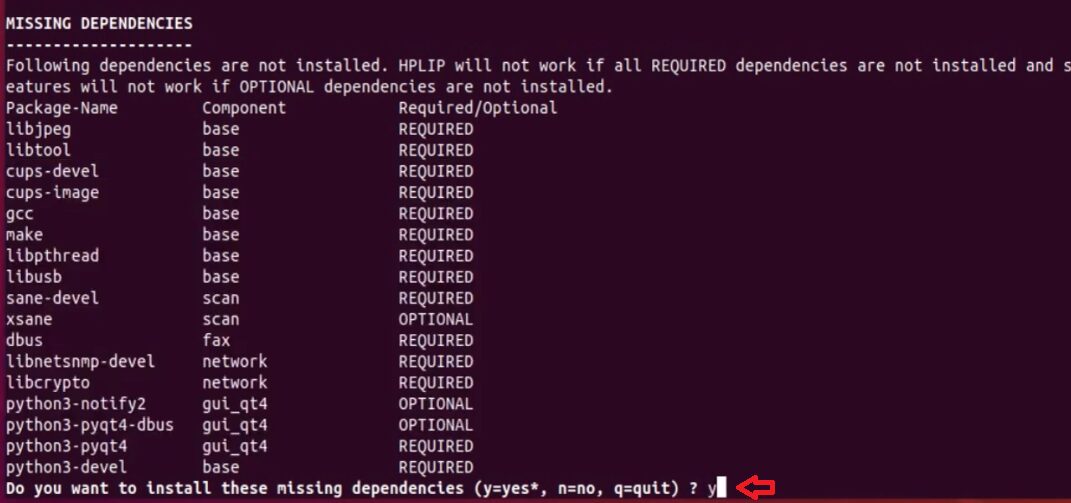
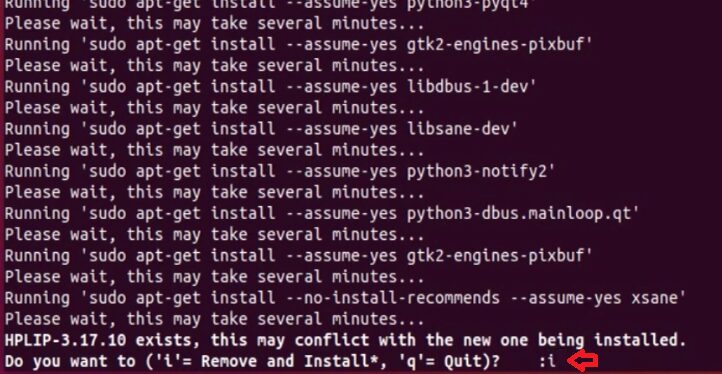
- If there will be any previous version of the HP printer driver installed on your computer, then you will be asked to uninstall that version to avoid driver conflicts in the future. Type ‘I’ to remove old version files, then press the ‘Enter’ key.
- You will be asked to check the updates for HPLIP. Since, you are already installing the latest version of the printer driver, you can skip this step. Type ‘N’ for No, then press the ‘Enter’ key.

- You will be asked to restart your computer, type ‘Y’ for Yes, then press the ‘Enter’ key.

- Confirm your choice by typing ‘Y’ again, then press the ‘Enter’ key to reboot your computer.



That’s it, you have successfully installed the HP LaserJet 1010 printer driver on Linux/Ubuntu operating system.
Questions & Answers
Q: I am trying to install an old HP 1010 laserjet printer on both my desktop and notebook computers, both are using Windows 10, the one 32 bit and the other 64 bit.
A: No issues, it will work with both 32bit and 64bit operating systems. Alternatively, you may apply the sharing method while installing this printer on one computer and share it on the network so that other computers on the network can install the printer as a shared printer.
Q: How can i install the universal hp driver? I downloaded the stuff you posted
A: Here's how to install HP universal driver: https://youtu.be/e4hFC6YmjsU
Q: Having the printer of laserjet 1010 while printing it is coming error unsupported personality: PCL. Please solve it.
A: Here's the printer driver as you requested. It would be a BASIC driver 32bit / 64bit, so you'll have to install it manually. Click here to get a video tutorial on how to install a basic driver manually.
Q: I have downloaded and installed the driver for Windows 7 32 bit but the printer does not print indicating error printing. My system is Windows 7 professional 32 bit.
A: Make sure you did select the right port (USB001, 002, 003) while installing this driver. The wrong port selection occurs this type of problem. We suggest you please uninstall the current driver and then install it again. This time, select the right port (USB001, 002, 003).
Q: Hi, I downloaded the driver for HP Laserjet 1010 for Windows 10 64 bit yesterday and it worked perfectly :-). Today it does not work 🙁 When I go to print something it comes up will 'error' under the print queue? The printer appears ok as I can press the red cross button on the printer and it prints out the HP blurb about itself. My laptop does make the boing noise when I plug the printer in, suggesting it knows it's there? Any ideas? Many thanks, Jim.
A: Sure, We'll help you. Please follow the following steps.
- Turn off the printer and apply the power drain on your printer.
- Clear the print jobs from your computer.
- Run print spooler repair tool ones.
- Reboot your computer.
- After reboot, try to print, if it did not fix yet then apply the next step.
- Go to your device manager.
- In the device manager, look for the “printers”. Double-click on it.
- Right-click on your printer (HP laserjet 1010) and click on “Update Driver & Software”
- Follow it on-screen instruction to complete this update.
- Now, try to printout something, it should print this time, if doesn't please let us know.
Q: HP 1010 driver but have no speed
A: Are you talking about driver downloading speed from our website or printing speed after installed the printer on your computer?
Q: I need a driver for my old printer hp Laserjet 1010 to install on my laptop for Windows 10 64-bit. Thank you in advance.
A: Thanks for contacting us, we have sent you the HP 1010 basic driver download link and its installation video tutorial at your email. Please let us know if need more help.
Q: HP laserjet 1010 BOISB 0207-00 driver download for Windows 7 64bit.
A: Click here to download HP laserjet 1010 basic INF driver, you'll have to install it manually. We have made a video tutorial on how to install HP Laserjet 1010 basic driver manually on a computer.
Q: How can I remove pending for printing docs & print new one only, hp laserjet 1010?
A: You can easily clean your print queue by following the steps on how to clean print queue.
Q: Please help me with hp1010 printer drivers windows 7 64bit. Model number: hp1010 cnfj387244 q2460a. plz install my device.
A: To install HP 1010 driver on Windows 7 computer, you'll have to download its basic driver and install it manually.
Q: I am using window 8, 64bit OS. Kindly help on how to download laser jet 1010 printer.
A: Click here to download 1010 basic driver for Windows 8 64bit. As it is a basic driver, you'll have to install it manually. Here is an example of how to install HP basic driver manually on your computer manually.
Q: Hi, If i download driver for hp laser jet 1010, its downloading for laserjet 3050. any how i cannot configure hp laser jet 1010 usb printer...please help
A: Sorry for the inconvenience. We just have corrected the mistake and added a NEW basic driver for Windows 10. Click here to download HP laserjet 1010 basic driver for Windows 10 32bit basic driver / Windows 10 64-bit basic driver. Click here to get a guide on how to install HP printer's basic driver manually.
Q: Will HPlaserjet 1010 run on osx 10.13.6?
A: Mac OS X 10.3.6 driver is not available for download even on HP official website. You may try one thing to install this printer on MAC. Plug your printer to the Mac computer, make sure it is turned ON. After that do update your MAC OS to the latest version, maybe it gets the driver.
Q: I cannot download printer driver. plz send me the driver for hp laserjet 1010 for windows 8 or any other option.
A: Windows 8 driver is not available for download even on HP official website. However, you can still install the hp 1010 printer on Windows 8 OS using its basic drivers. Follow the following steps how to do.
- Click here to download Windows 8 32bit basic driver / Windows 8 64-bit basic driver.
- Click here to get a guide on how to install HP printer's basic driver manually.
Q: Can't find drivers for hp LaserJet 1010 for windows 10.
A: For Windows 10, you'll have to install its basic driver manually. We are giving you Windows 10 basic driver. Click here to download Windows 10 32bit basic driver / Windows 10 64-bit basic driver.
Click here to get a guide on how to install HP printer's basic driver manually.
Q: I had a hp printer and having the same printing issue. I reisntall its driver and then my print worked smoothly on my laptop. I want HP laserjet 1010 driver. I was Searching for it but couldn't found them online. Please send me the HP laserjet 1010 printer driver for windows xp 32bit.
A: Windows xp driver for HP laser jet 1010 available for download. In order to download, go to the download section above, all the drivers are listed in the list there. Download the driver from the list.
Q: Plz send driver - hp laserjet 1010 Windows 7 - 32bit.
1010 LASERJET PRINTER FOR WINDOWS 7 32 BIT EARLIER I WAS USING WITH 7 ALSO
A: You can install HP laserjet 1010 windows 7 driver through "Windows Update". Do update your windows, make sure the printer is turned on and connected to the computer via USB cable.