

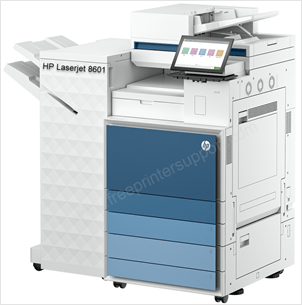
HP Laserjet 8601 series printer has an exceptional speed: 70ppm. This printer has an auto-duplex feature with ADF technology. Moreover it has three connectivity options: WiFi, Ethernet and USB. To set up this printer on your computer, you need to install its latest version driver on your computer.
If you have the driver CD then that would be great. If you don’t have it, then you can download the latest driver from the download section below. In case you face any problem in downloading the drivers from here, alternatively you can download the driver from HP’s official website. After downloading, you must know the right method, which is also given beneath the download section.
Advertisement
Download HP Laserjet 8601 Series Printer Driver
To download the driver, determine the operating system version of your computer and click on the below given download link accordingly.
Windows
Supported OS: Windows 11, 10, 8, 8.1, 7, Vista, XP (32bit / 64bit), Server 2000 to 2025
Universal driver (Priner) for Windows: Download (32bit / Download (64bit) – 21.8 MB | Recommended
Universal driver (Scanner) for Windows: Download – 411 MB
Firmware download for Windows: Download – 1022 MB
Mac
Supported OS: macOS 10.x, 11.x, 12.x, 13.x, 14.x, macOS 15 Sequoia, 26.x Tahoe
Full feature driver for Mac: Download – 10.8 MB
Firmware download for Mac: Download – 1022 MB
Linux
Supported OS: Linux & Ubuntu REM/DEB (32bit / 64bit)
Full feature driver for Linux: Download – 25.9 MB
OR
Alternatively, you may download the same driver from HP’s official website.
How to Install HP Laserjet 8601 Series Printer on a PC
In order to install this HP Laserjet 8601 series printer on a Windows PC, you just need to follow the instructions below. I have performed the steps on my Windows 10 64bit laptop.
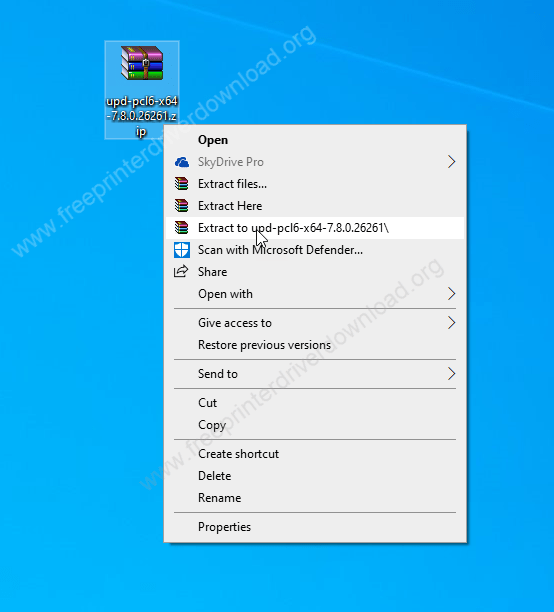
Step 1: Unzip the driver file into a folder.

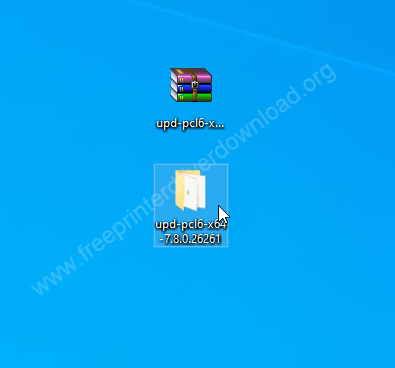
Step 2: Open up the extracted folder.

Step 3: In the folder, double-click on install.exe file to execute the driver auto-installer.

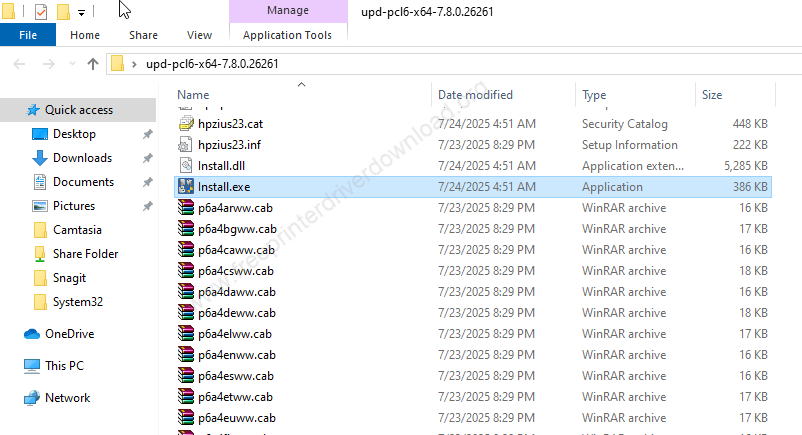
Step 4: Click on Yes.

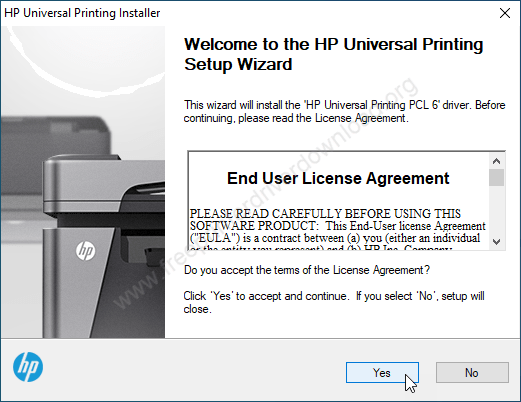
Step 5: Choose the preferred language.

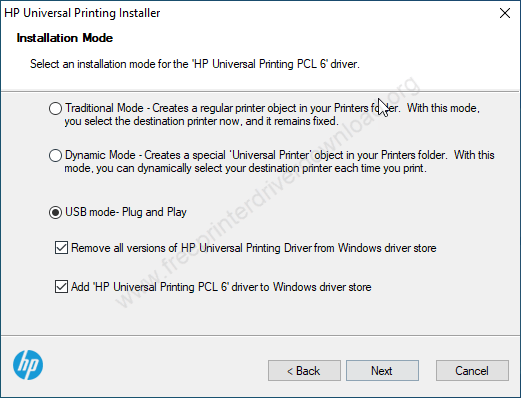
Step 6: Click on Finish to compelte the installtion process.

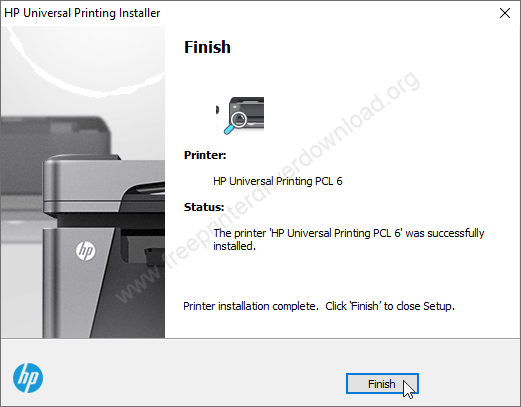
Here’s how you can install this HP Laserjet 8601 printer on Windows. I have installed this printer on my Windows 10 64bit OS but you can apply the same steps on Windows 11, 8, 8.1, 7 OS.
Specifications:
HP Laserjet 8601 series printer is an all-in-one printer. You can print, scan, copy and fax. Print speed of this printer is extremely good: 70ppm with a print resolution of max 1200 x 1200 dpi. The scan speed is around 300 ipm with 300 x 300 dpi resolution. The copy speed is also very good at around 70ppm with 600 x 600 dpi resolution.
This printer uses laser technology to print, so it uses HP 176A/W1760A toner cartridges which give you 45000 print outs per cartridge. It has an ADF (Automatic Document Feeder) on the top which can hold and handle 200 pages at a time. It has a maximum of 5 trays, each tray can hold 520 pages at a time. It has one more optional multi-purpose tray which can process 100 pages at a time.
Another useful feature is the auto-duplex – in this you can print both sides of the paper without flipping it manually – it will do the job automatically. This printer supports maximum A3 size paper. The printer can be installed on the latest operating systems like Windows 11, 10, 8, 8.1, 7 and mobile devices with the help of Apple AirPrint and Android app.
As it is a laser printer, it consumes 1088 watts while printing and 35 watts when it is in idle mode. Although this printer tagged as an Energy Star certified product. As it is a commercial printer this printer has lots of security features so that it can print itself from the malware & Trojan attacks.
The dimensions of the printer are very good: 585 mm in width, 695 mm in depth and the printer’s height is 1158 mm. The total weight of this printer is around 112KG.