

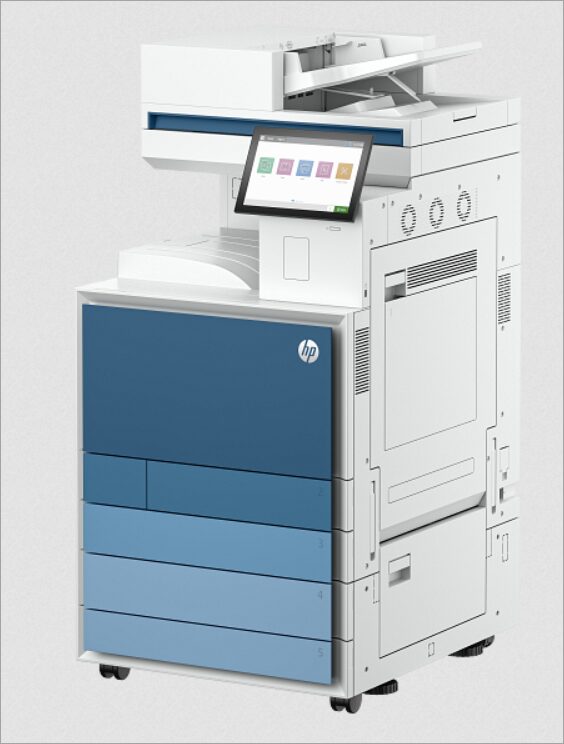
HP Laserjet 8801dn is an A3 color printer. This printer is designed for commercial use with the best quality output. It has a dedicated paper input tray for A3 size papers. It has auto-duplex feature for copying and scanning. It also has a dedicated tray for A4, letter and photo paper. As this is a commercial printer, it has many security features to protect itself from malicious attacks.
It has 3 connectivity options to connect this printer to the computer: USB, Ethernet and WiFi (Wireless). In order to setup this printer on a computer, you need to download its latest version driver. You can download its driver from the download section below. After downloading the driver, you must know the correct method to install this printer. I have prepared a step-by-step installation guide which I have shared with you on this page beneath the download section. So let’s start the installation process by downloading the drivers first.
Advertisement
Download HP Laserjet 8801dn Drivers
Although you can get the drivers from its software CD, here you will get the latest released driver. Know your operating system version first and then click on the below given download link accordingly.
Windows
Universal printer driver for Windows: Download (32bit) – Download (64bit) – 22.2 MB | Recommended
Universal scanner driver for Windows: Download – 411 MB
Mac
Full feature driver for Windows: Download – 10.8 MB
Linux
Full feature driver for Windows: Download – 25.9 MB
OR
You may download the same driver from HP’s official website as well.
How to Install HP Laserjet 8801dn Printer Driver
Installing the driver correctly is just as important as downloading the one that matches your printer’s exact model number. If the printer driver is not installed properly, your printer may not work correctly.
The first thing you should do is disconnect your printer’s USB cable from the computer. Connect it only when the installer asks you to do so during the installation process. So, let’s start the installation process.
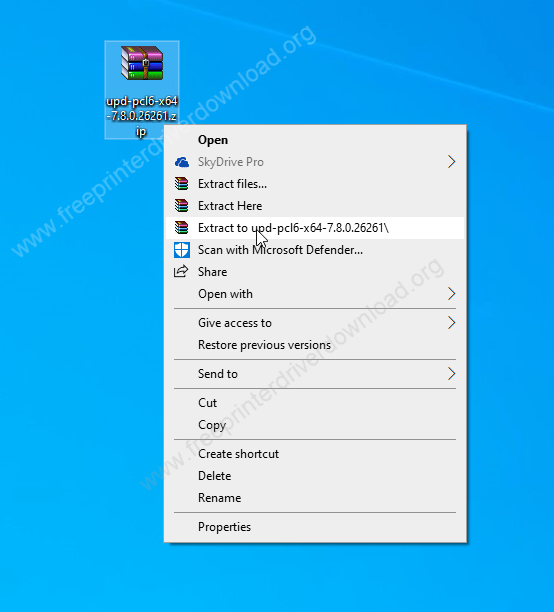
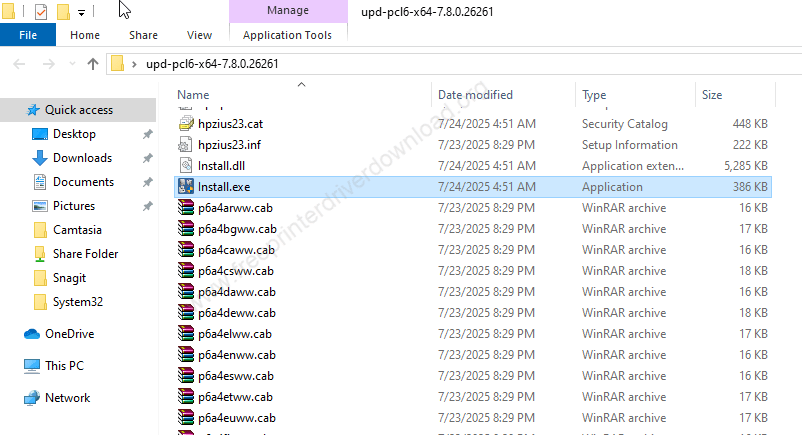
Step 1: Unzip the driver file – Right-click on the driver file “upd-pcl6-x64-7.8.0.26261.zip” and click on “extract to” to extract the driver file.

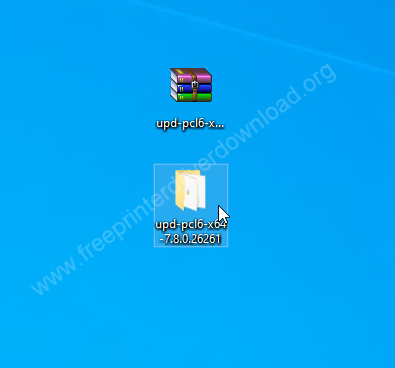
Step 2: Open up the unzipped folder.

Step 3: Double-click on the setup file “install.exe” and then click on yes if it is asking for permission to start the installer.

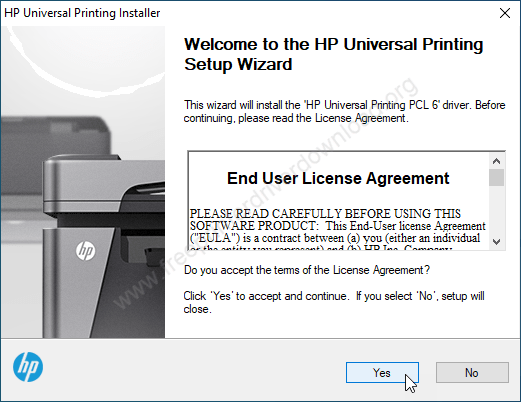
Step 4: Click on Yes.

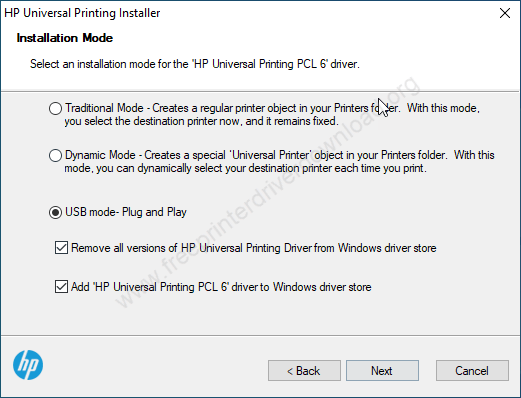
Step 5: Choose your preferred connection type and then click on Next.

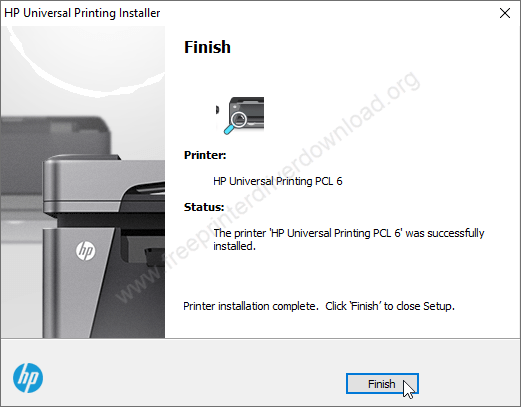
Step 6: Click on finish. HP LaserJet MFP 8801dn printer has been installed successfully.

You have now seen how to install the printer on your computer. You should follow the same method according to the version of your operating system.
Specifications:
HP LaserJet MFP 8801dn is an all-in-one A3 color laser printer. The product number is 9S184A. This printer is used in the corporate to print, copy, scan and fax. The print speed of this printer is extremely high which is 60 pages per minute along with the automatic-duplex. It has an advanced scanner and finisher option.
This printer works with laser technology which gives you very high print speed of 60 ppm in color and black with the resolution of 1200 dpi in fine mode, 600 dpi in normal mode and 300 dpi in quick view mode.
This printer uses 4 toner cartridges: black, cyan, magenta and yellow. The toner cartridge model numbers are: HP 225A Black, HP 225A Cyan/Yellow/Magenta W2251A/W2252A/W2253A for replacement.
There are 4 input paper trays which are cassette type paper trays. There can be a dedicated tray for A3, A4, Letter and photo papers. Each tray can handle or hold 520 pages at a time.
There is a multipurpose tray situated on the left side of the printer which can hold 100 pages at a time. Any tray can be set to the envelope size for the envelope printing which can hold 50 envelopes at a time. There is no output tray, instead there is a space to keep the output pages.
There are two types of scanners: the flatbed scanner and the ADF scanner. In the ADF, you can hold 200 pages at a time. You can use ADF for any scanning or copying purpose. The scanner technology of this printer uses a platen scanner CCD and Digital CIS.
The maximum scan dpi is 600 resolution. In the ADF you can scan A4 size print papers and the flatbed scanner you can scan A3 size papers. The scanner speed of this printer is 90 ipm, in normal mode. If you are using the duplex feature then it could be 180 ipm.
The copy speed of this picture is 60 CPM in black & color copy at 600 dpi. You can zoom in and zoom out The copy from 25% to 400%.
You can connect the machine to the computer using 3 connectivity options like: Ethernet, Wifi and USB. Don’t get confused with the many USB ports because one USB port is used to connect with the computer and the other one is for the memory card only to print from the memory card directly without using computer.
If you are talking about the hardware of this printer then there is a big 10.1 inch display on the front and it has a 1.6 Gigazarz Quad Core processor, 6GB of RAM with a 256GB hard drive. The power consumption of this machine is around 1000 watts while printing and 36 watts when it is in ready mode.
This printer supports Windows 11, 10, 8, 8.1, 7, Vista, XP (32bit / 64bit), Server 2000 to 2025, Linux, Ubuntu, Mac 10.x, 11.x, 12.x, 13.x, 14.x, macOS 15 Sequoia, 26.x Tahoe Operating Systems. I have given all the driver download links in the download section which is given above. Download the driver and install it – installation guide is also given beneath the download section.