
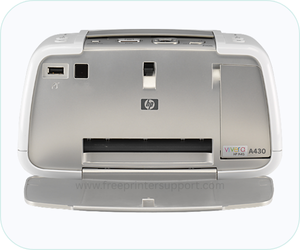
HP Photosmart A430 is a single function color photo printer with inkjet technology. The product number of this printer is Q7031A. This is made for photo printing. If you would like to use all its functions & features through your computer, you will have to install its driver on your computer. You can either download its driver from HP’s official website or from the download section below, I have given the driver download link there.
This printer supports: Windows 11, 10, 8, 8.1, 7, Vista, XP (32bit / 64bit), Server 2000 to 2026, Linux, Ubuntu, Mac 10.x, 11.x, 12.x, 13.x, 14.x, 15.x, 26.x Tahoe Operating Systems. After downloading, go to the installation section below and follow the given step-by-step instructions in order to install this printer properly on your computer.
Advertisement
Download HP Photosmart A430 Printer Driver for PC
In order to download the HP Photosmart A430 driver, you will have to click on the download link which I have shared in the below. Please check out the list below and click on the download button according to the version of your operating system.
Driver for Windows
Supported OS: Windows 11, 10, 8, 8.1, 7, Vista, XP (32bit / 64bit), Server 2000 to 2026
Basic INF driver for Windows 11, 10, 8, 8.1, 7 → Download driver for 32bit
Basic INF driver for Windows 11, 10, 8, 8.1, 7 → Download driver for 64bit
Driver for Mac
Supported OS: macOS 10.x, 11.x, 12.x, 13.x, 14.x, macOS 15 Sequoia, 26.x Tahoe
Universal driver for Mac → Download
Driver for Linux
Supported OS: Linux & Ubuntu REM/DEB (32bit / 64bit)
Universal driver for Linux → Download
OR
Download the HP Photosmart A430 Printer Driver from HP’s official website
How to Install HP Photosmart A430 Printer Driver on PC
After downloading the right driver, it is also very important that you install this driver properly on your computer because you will have to install it manually. That’s why I have shared a step-by-step installation guide in the download section below. Please check out the installation process for the proper installation.
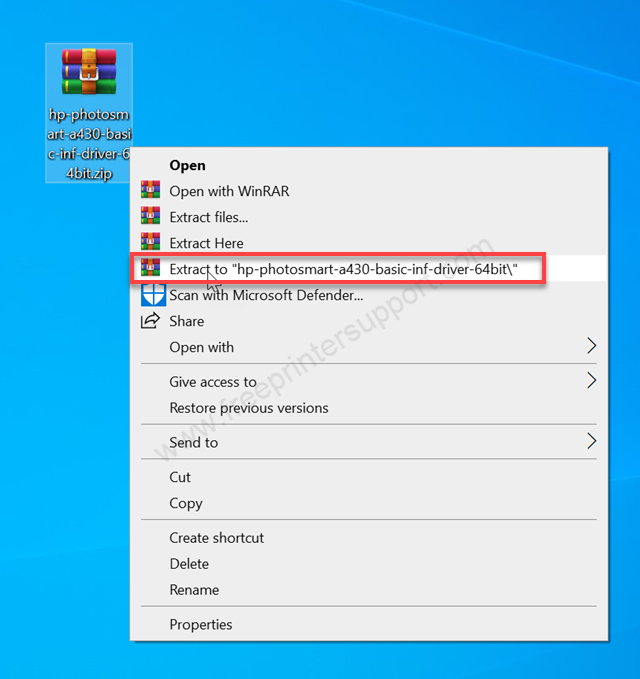
Step 1: After downloading the driver from the above given download section, unzip the driver file to the same location.
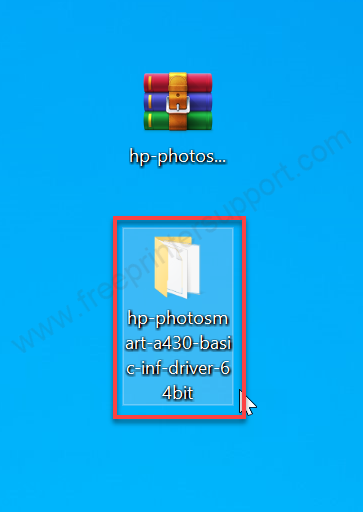
Step 2: Open up the extracted folder.
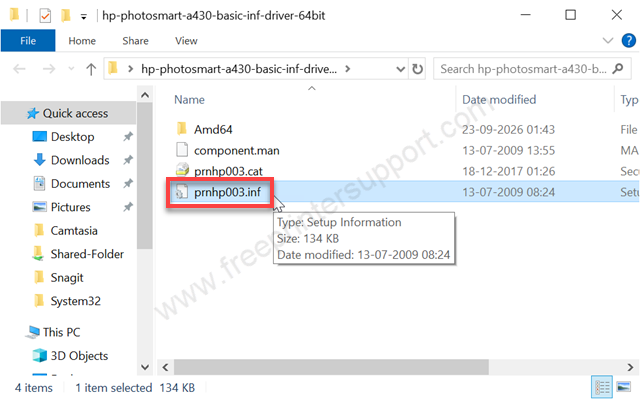
Step 3: Find the basic driver file: prnhp003.inf and remember the location of this inf driver file. We will use this inf driver file while installing this printer manually when the installation wizard asks for the driver.
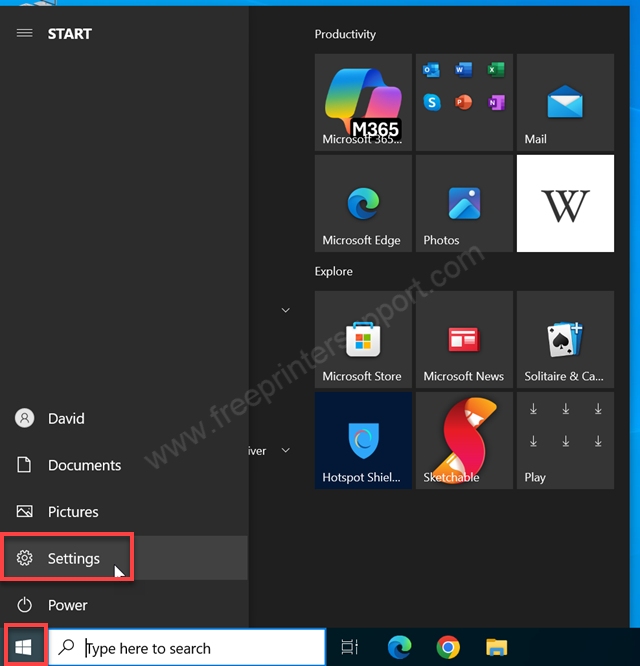
Step 4: Let’s start installing this printer manually. Click on the start button and click on settings.
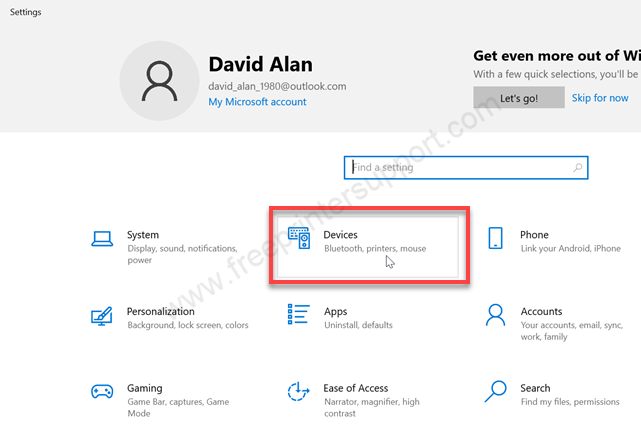
Step 5: After that, click on devices.
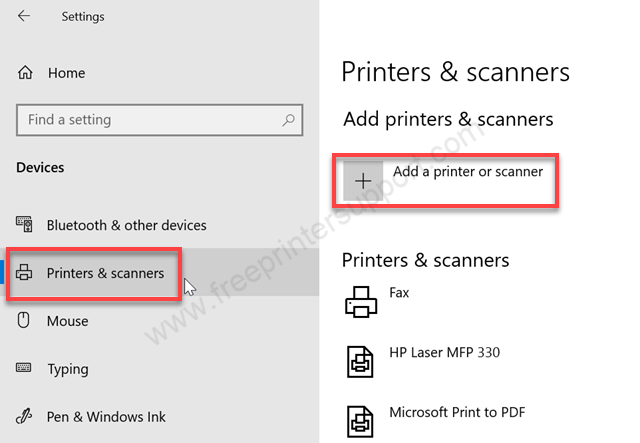
Step 6: Click on Printer and Scanners from the left side pane and then click on Add a printer or scanner button, the plus icon, from the right side pane.
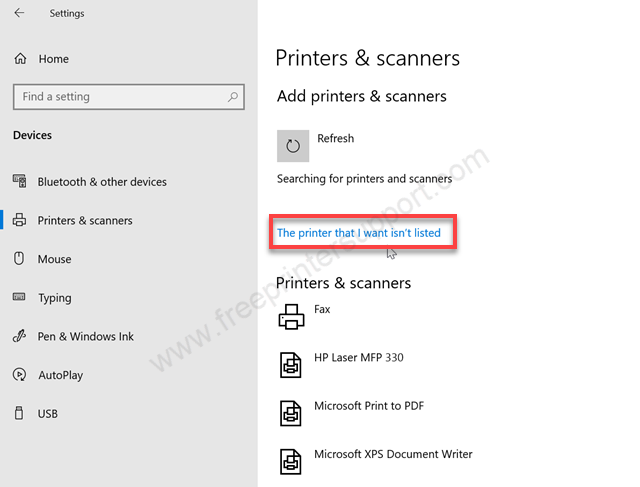
Step 7: After a few seconds you will get a link, The printer that I want is not listed. You just need to click on that.
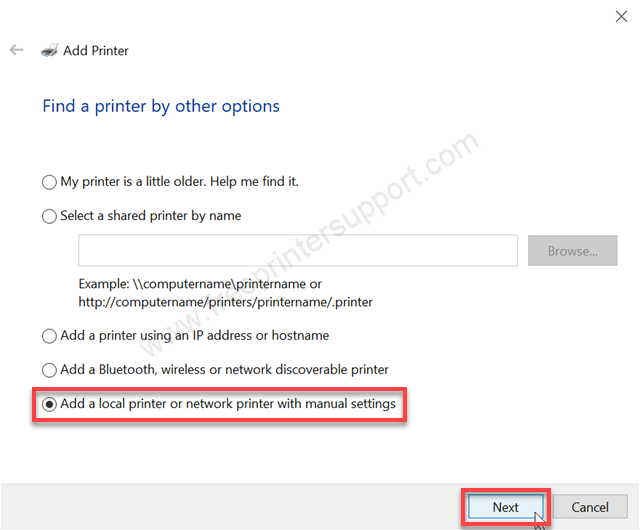
Step 8: The manual installation wizard has been started. Choose the last option, Add a local printer, and then click on Next.
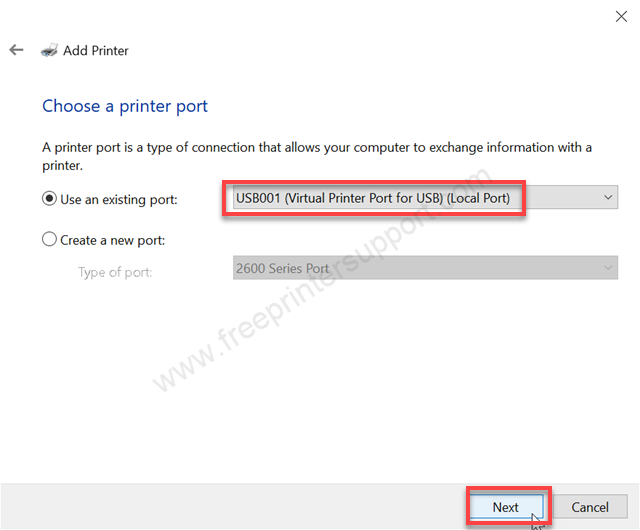
Step 9: Now it is asking to choose the port. You need to choose the port where your printer is connected right now. I suggest you to choose USB 001 port. If you have a single printer that is connected to your computer, then choose USB001. If you have many printers connected to this PC, then choose accordingly. It will be USB002 or USB003. If you have the printer model number listed under the printer port, then you can select that one as well and then click on Next.
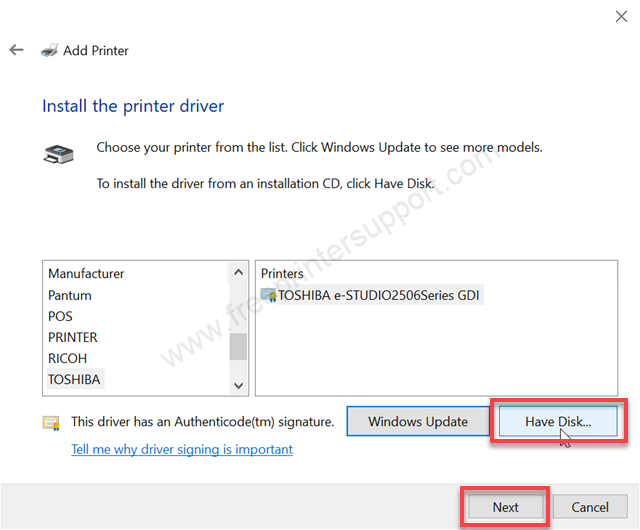
Step 10: Now it is asking for the drivers. So please click on Have Disk.
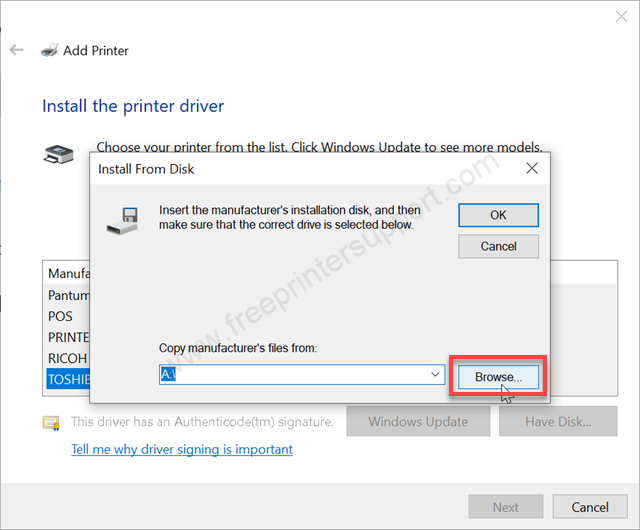
Step 11: Click on browse.
Step 12: Locate the driver file from the location where you have extracted the driver’s file and then click on.Select the driver file prnhp003.inf and then click on Next.
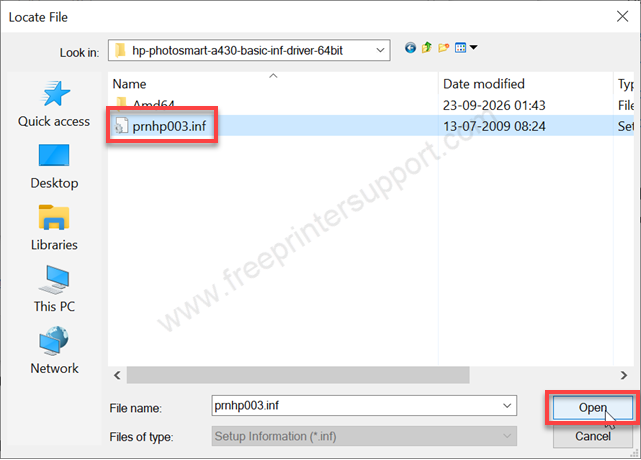
Step 13: Click on OK after that.
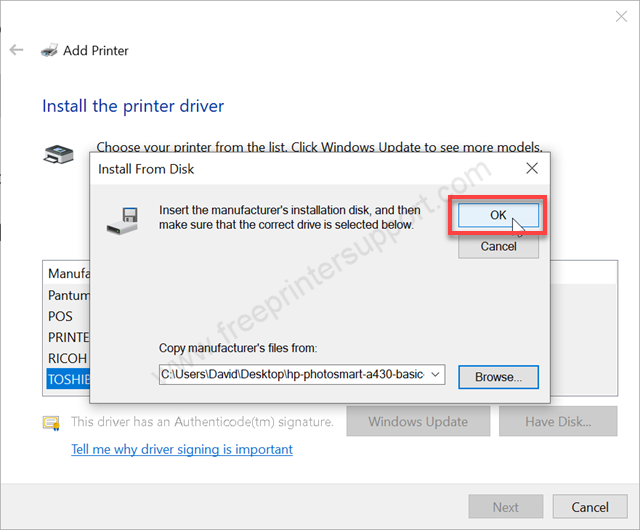
Step 14: Now all the drivers are listed, which is in the INF file. You just need to select the model number HP Photosmart A430 of your printer and then click on Next.
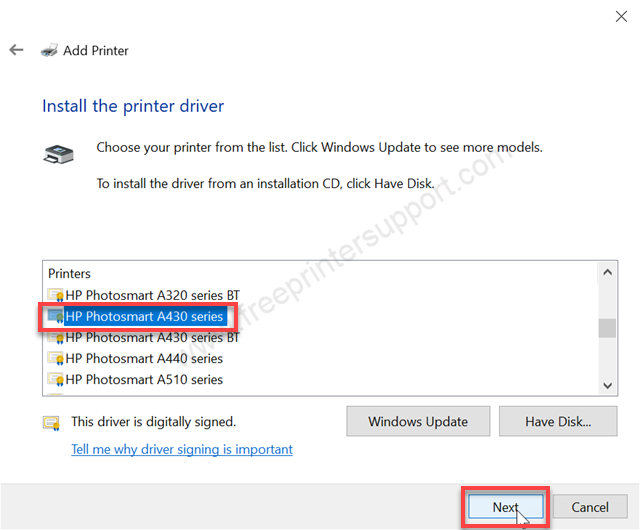
Step 15: Click on Next
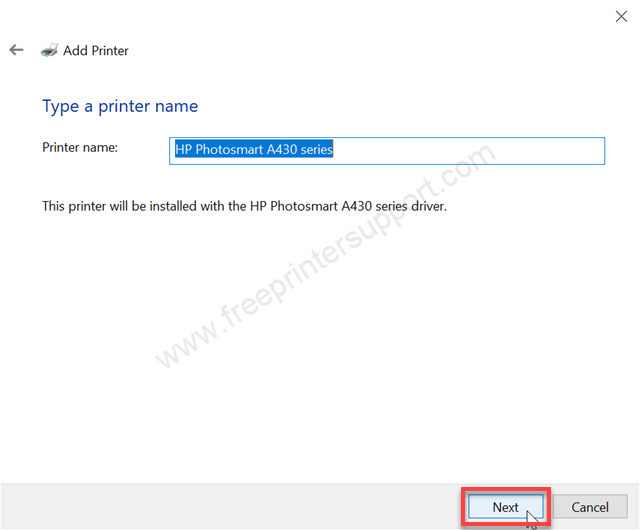
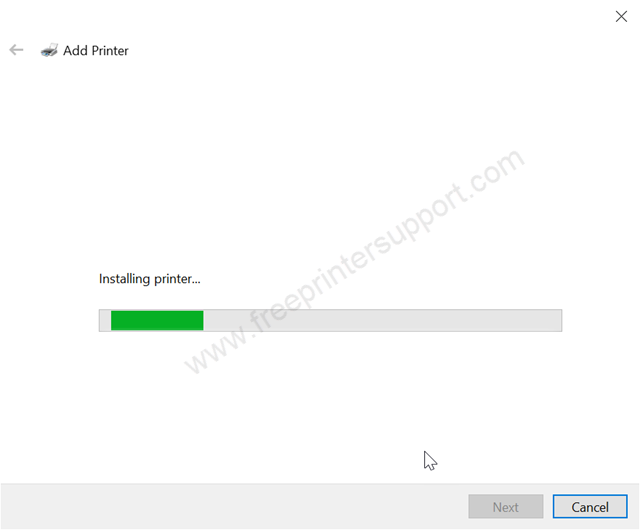
Step 16: Please wait while installing the drivers.
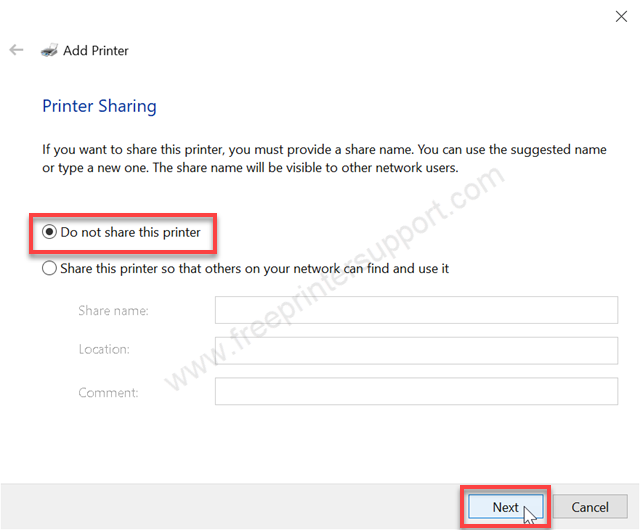
Step 17: Choose the first option, Do not share this printer, and then click on Next.
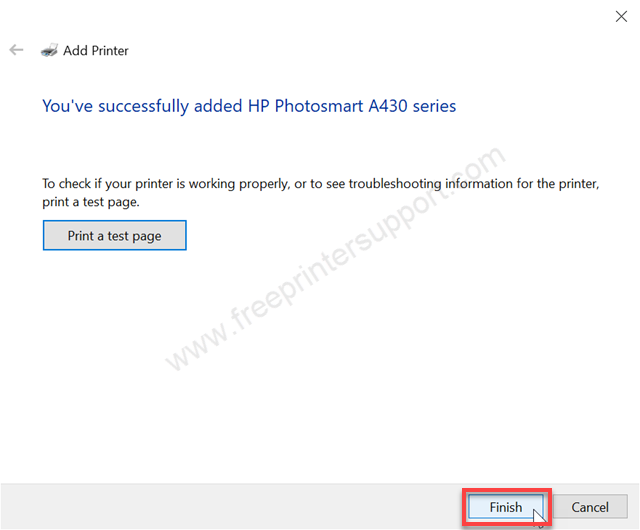
Step 18: The printer has been installed successfully. Click on Finish to complete this installation process.
Step 19: Go to the printers page and check. You will get a printer installed with the name of HP Photosmart A430 series. This is the printer that you have just installed.
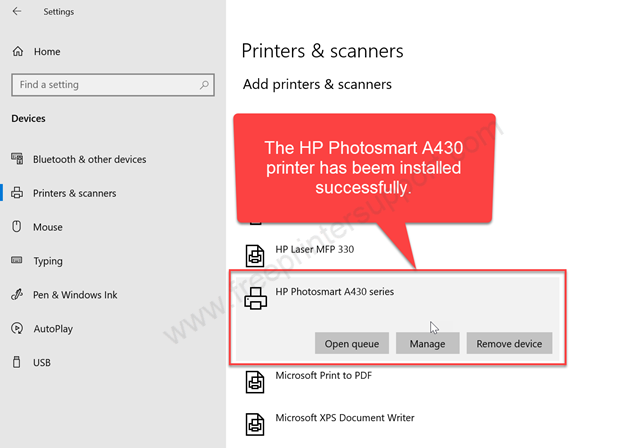
So this is how you can install this printer on your Windows 10 and 11 computer. I have installed it on my Windows 10, but you can apply the same step and the same driver on your Windows 11, Windows 8, and Windows 7 as well.
